Shipping and driver (Envío)
Assigning and tracking home deliveries, and delivering with the tablet.
Envío (Shipping) handles home delivery: a driver is assigned and delivers with the tablet, even without signal.
F.1 Assigning and tracking shipments
Entrega (Delivery) → «Envíos» (Shipments) shows the unassigned orders and the drivers with their load. In manual mode, the driver is chosen; in automatic mode, «Auto-despachar» (Auto-dispatch) distributes them.
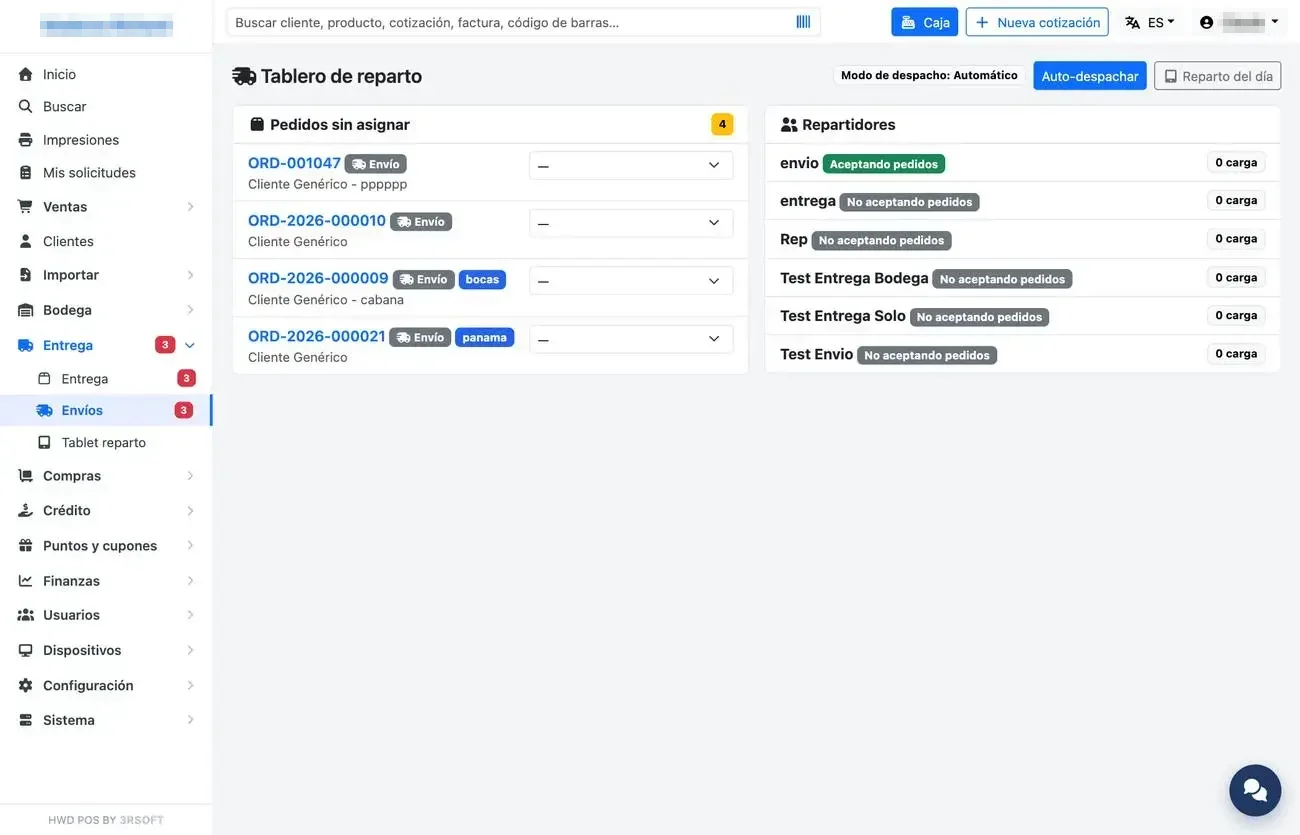
Delivery board.
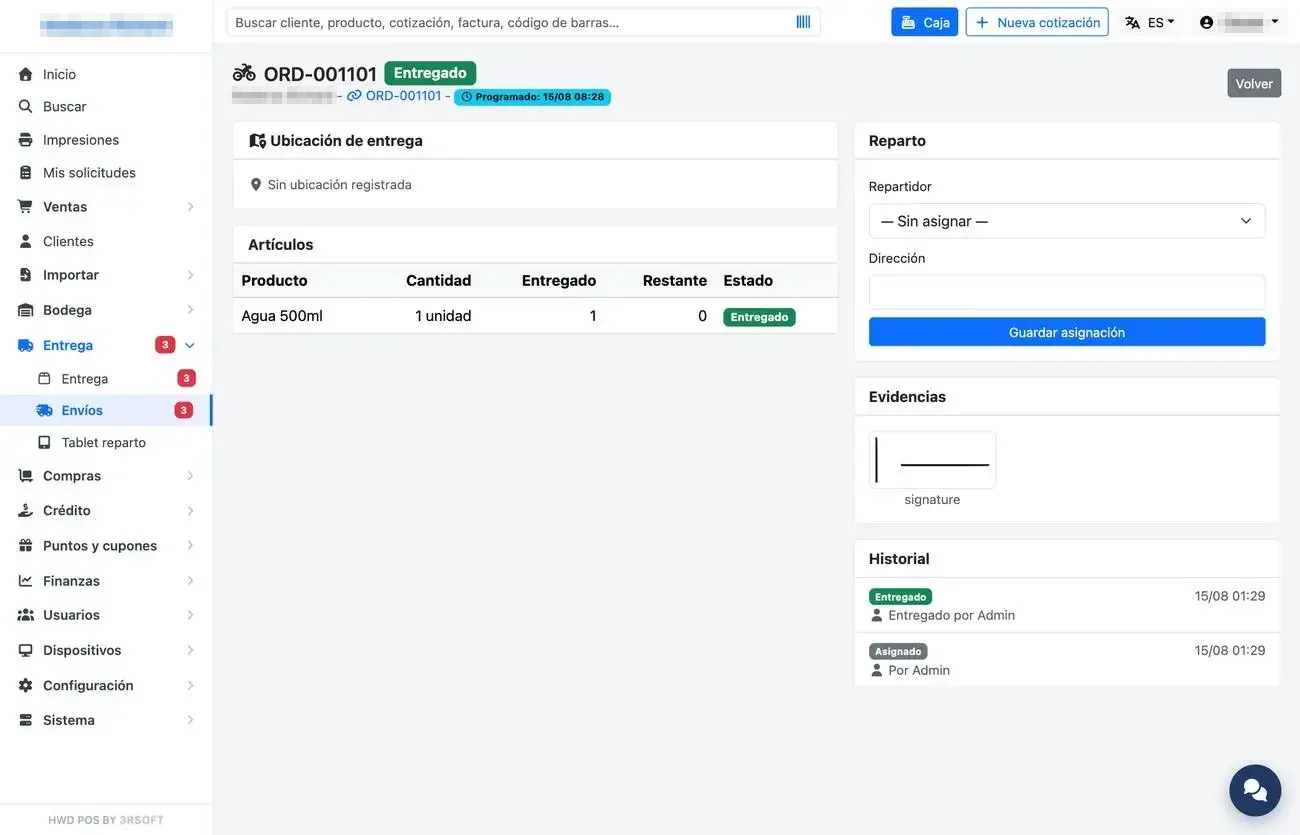
Shipment: items, assignment, evidence and history.
A partial or failed shipment is rescheduled with «Re-preparar y continuar» (Re-prepare and continue): it goes out again with the same number and its history.
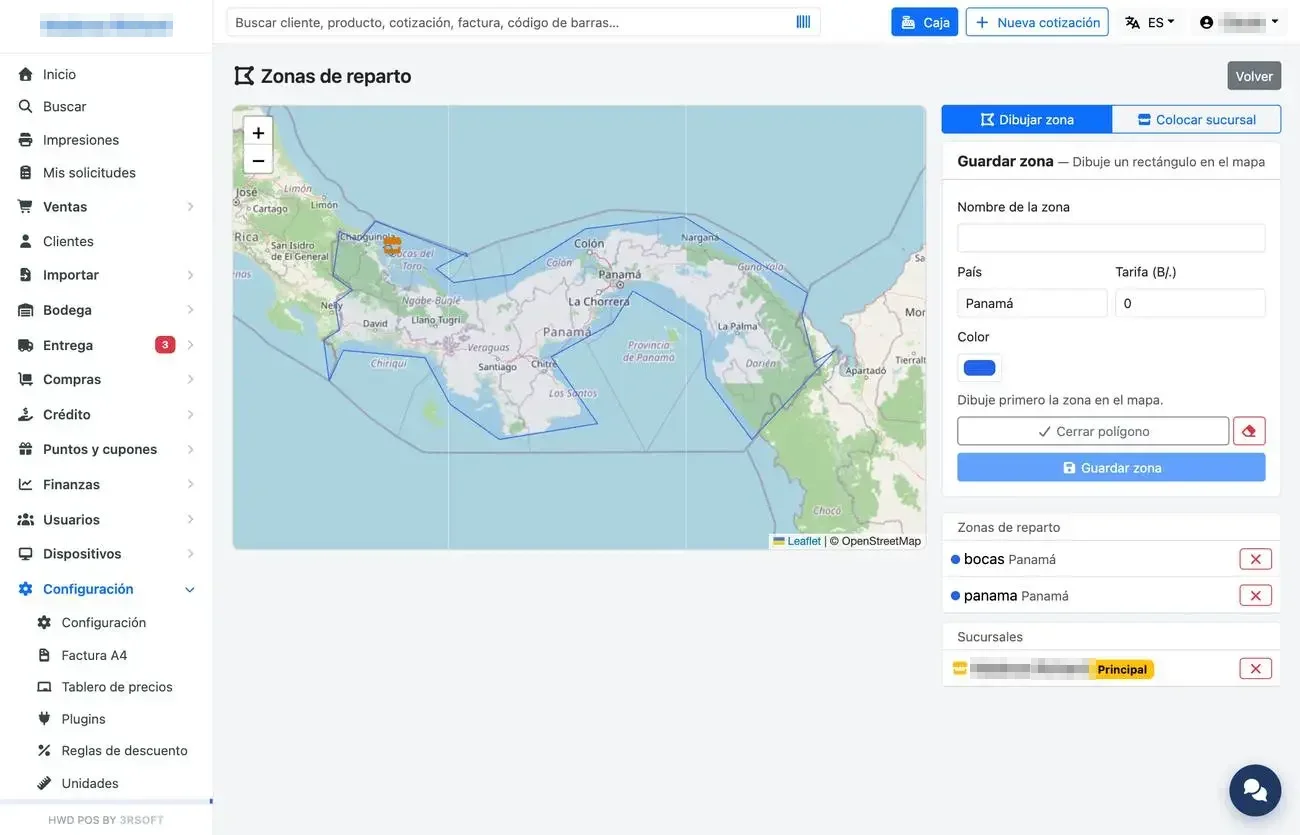
Delivery zones drawn on the map (Configuración, Settings).
F.2 Delivery tablet
The steps below are for «Tablet reparto» (Delivery tablet) in the POS. The HWD POS Delivery app has its own screens, also without signal: see HWD POS Delivery.
- Open «Tablet reparto» (Delivery tablet) (or the delivery app) while you have signal and press «Sincronizar» (Sync).
- With automatic dispatch, press «Empezar a aceptar pedidos» (Start accepting orders).
- At each stop press «Abrir y entregar» (Open and deliver); «Cómo llegar» (Directions) opens the map.
- Mark the outcome and what was delivered for each line.
- Take the evidence photo and ask for the customer's signature.
- Press «Registrar entrega» (Record delivery).
- At the end of the shift, press «Dejar de aceptar» (Stop accepting).
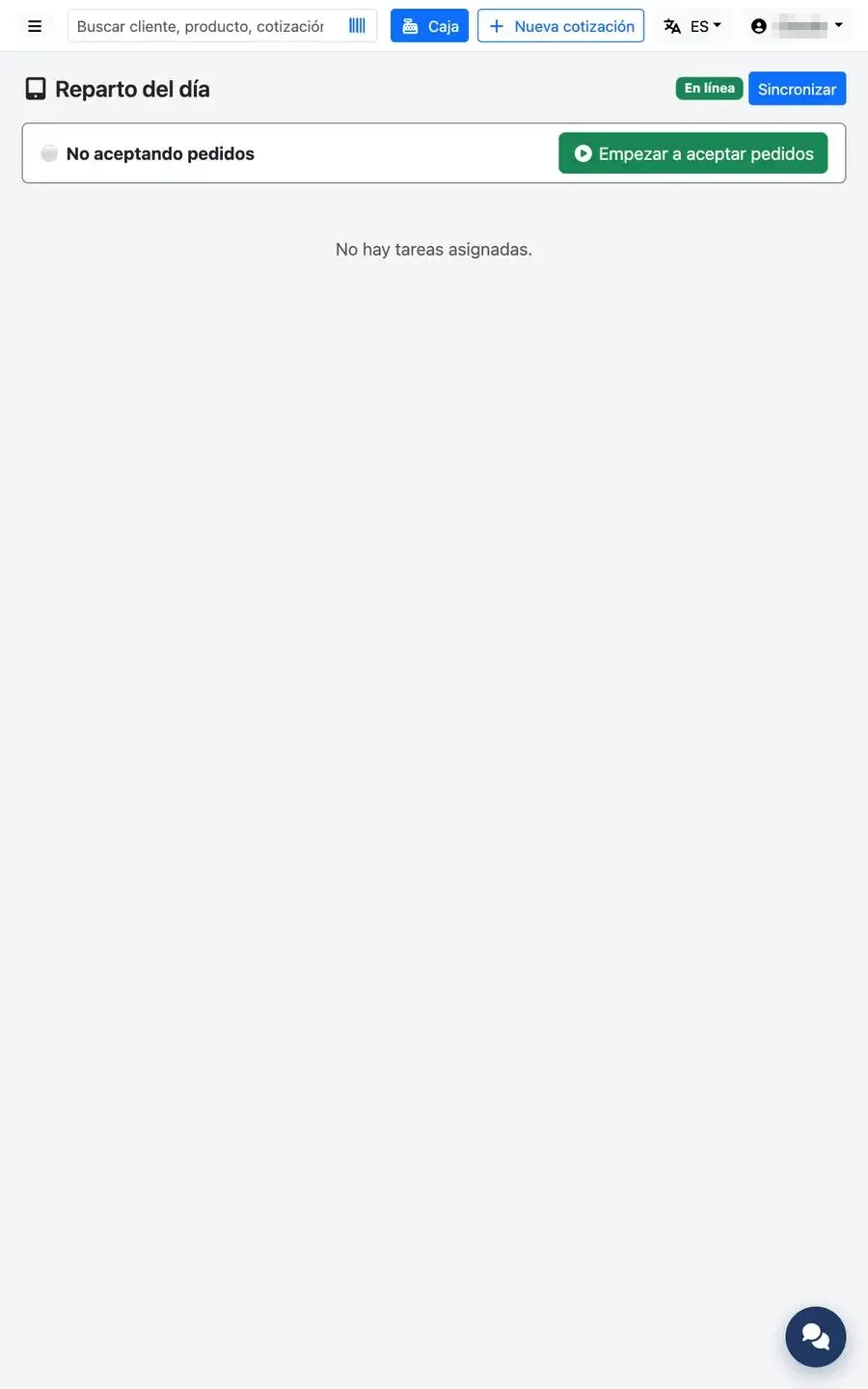
The day's deliveries on the tablet.
Offline
Deliveries are saved on the tablet and upload automatically when the signal returns. If the tablet says «Sin conexión» (Offline) while having good signal, tell the technician: it is usually a server setting.