HWD POS Delivery
The Android and iOS app for drivers - the day's deliveries with map, quantities, signature and photo, also without signal.
HWD POS Delivery is the app for the drivers who take orders to the customer's address. It works on Android and iOS, on tablets and phones. Unlike the other apps, it keeps working without signal: the day's deliveries are saved on the device, and the deliveries recorded without connection are sent on their own when the connection returns. This page covers version 1.0.3 of the app with HWD POS 1.0.27. The screenshots are from an iPad; on Android and on phones the screens are the same.
How shipments are assigned to drivers from the POS is explained in Shipping and driver.
Requirements
- An Android tablet or phone, or an iPad or iPhone with iOS 15 or later.
- A camera, for the activation code and the photos of the delivery.
- A user with the Envío (Shipping) role. Other accounts get «Esta cuenta no puede realizar entregas.» (This account can't make deliveries).
- Signal at least at the start of the route, to download the day's deliveries. The map needs internet; the rest of the delivery doesn't.
Setting up the device
Install the HWD POS Delivery app provided by 3R Soft. Setting it up has two steps: first the device, then the driver.
1. The device. The first screen links the device to the server, like the other apps: press «Escanee para activar el dispositivo» (Scan to activate the device) and scan the QR generated in «Terminales» (activation codes), or type «Servidor local (LAN)» and «Servidor público (opcional)» and press «Guardar y continuar» (Save and continue).
2. The driver. Type «Usuario» (User) and «Contraseña» (Password) and press «Entrar» (Sign in). Changing driver later doesn't change the server; «Reconfigurar servidor» (Reconfigure server) goes back to step 1.
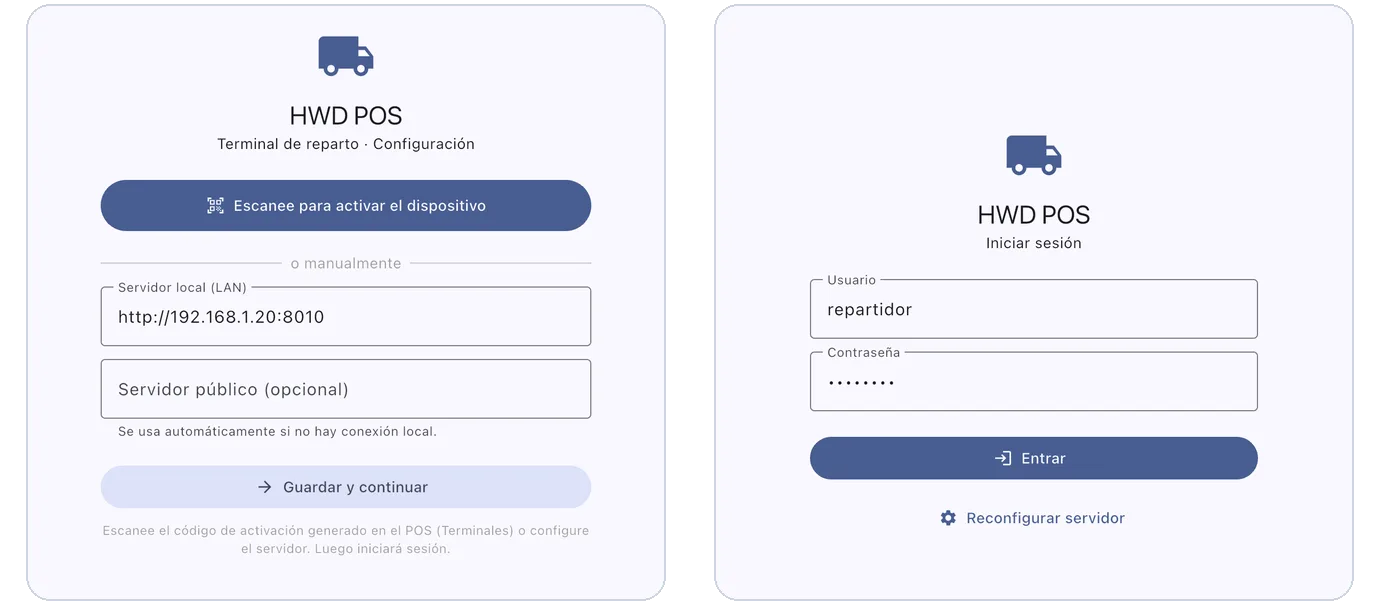
Left, step 1: the server, with a QR or by hand. Right, step 2: the driver signs in.
If the server isn't activated, the app warns «Servidor no activado: la entrega funciona, active el sistema en el servidor.» and keeps working.
The day's deliveries
The home screen lists the deliveries assigned to the driver.
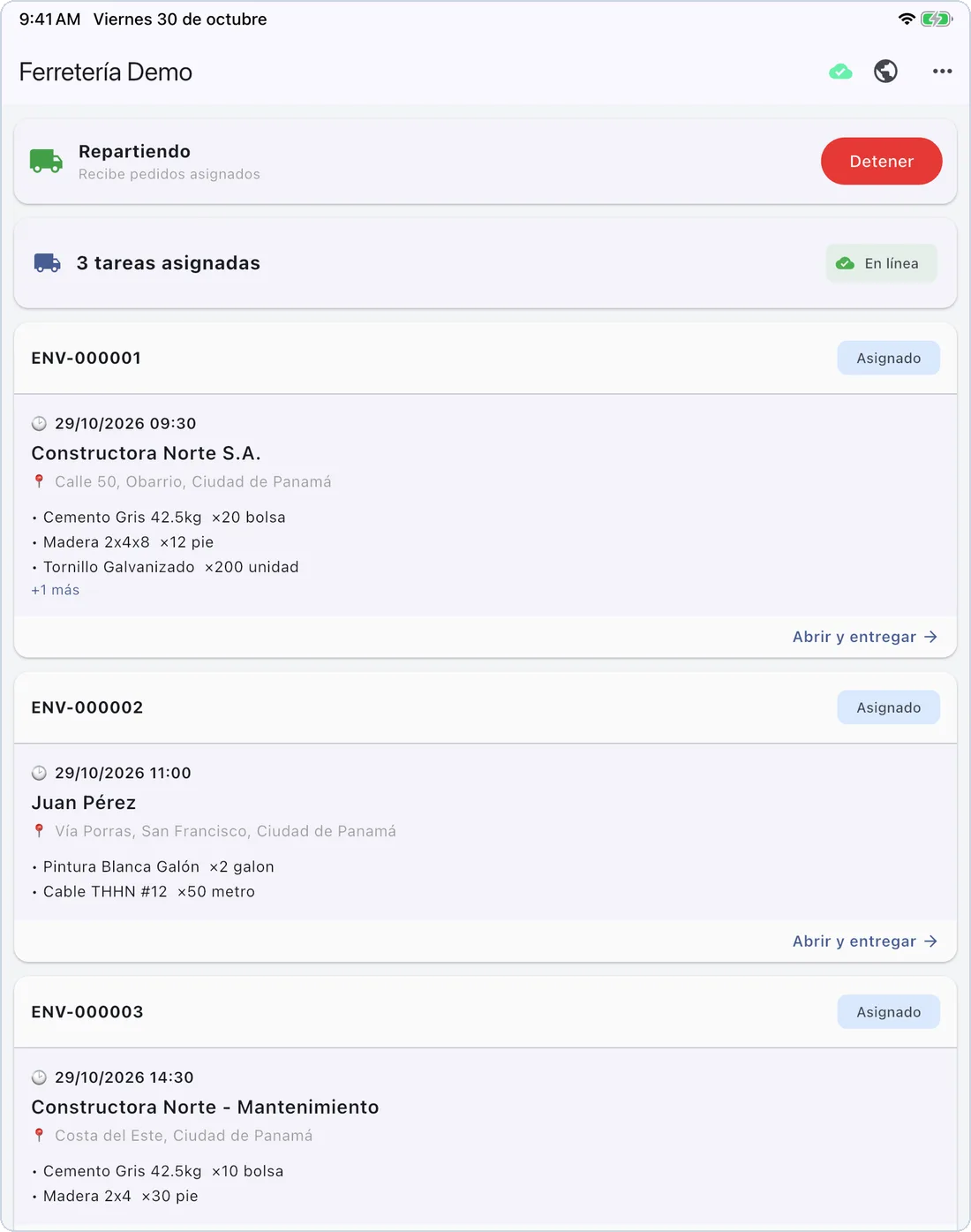
The day's deliveries: availability, number of tasks, connection and one card per shipment.
| Element | What it shows |
|---|---|
| «Repartiendo» / «En pausa» (Delivering / Paused) | Whether the driver receives new orders. «Iniciar» (Start) and «Detener» (Stop) change it; with automatic dispatch, only drivers who are delivering receive orders. |
| «N tareas asignadas» (N tasks assigned) | How many deliveries are pending. |
| «En línea» / «Sin conexión» (Online / Offline) | Whether the app can talk to the server right now. |
| Each card | Shipment code, state («Asignado», «En camino», «Parcial», «Fallido»), scheduled time, customer, address and the first products. |
| Cloud at the top | Green with connection, orange without it. An orange number next to it is how many deliveries are waiting to be sent. |
| Globe at the top | «Abrir POS» (Open POS): the full POS, which needs connection. |
| ⋯ → «Cerrar sesión» | Signs the driver out. |
Pull the list down to sync by hand: it sends what is pending and downloads the latest assignments.
Making a delivery
Press the card, or «Abrir y entregar» (Open and deliver), to open the delivery.
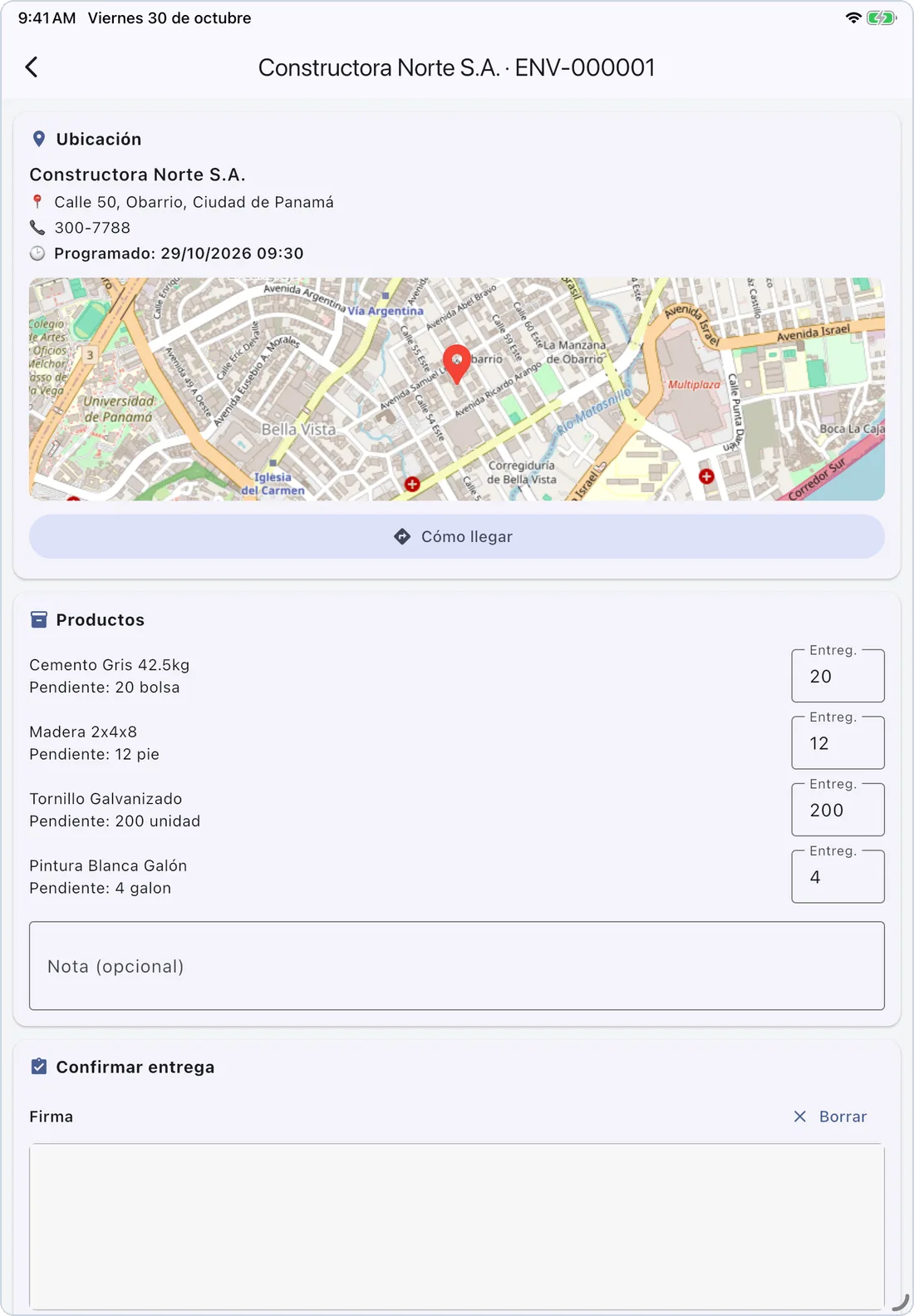
The delivery: location with map, products with the quantity delivered, and the note.
Ubicación (Location). It shows the customer, the address, the phone and the scheduled time, and a map with the point. «Cómo llegar» (Directions) opens Apple Maps on iOS or Google Maps on Android. If the shipment has no point on the map, «Ver dirección en el mapa» (See address on the map) searches the address.
Productos (Products). Each line shows what is «Pendiente» (Pending) and, in «Entreg.» (Delivered), the quantity that will be delivered: it starts with the full pending quantity. Change it only for a partial delivery. Add a «Nota (opcional)» (Note) if needed.
Confirmar entrega (Confirm delivery). Ask the customer to sign in «Firma» (Signature); «Borrar» (Clear) starts again. «Foto» (Photo) takes one or more evidence photos.
Press the result: «Entregado (todo)» (Delivered, all), «Entrega parcial (según cantidades)» (Partial delivery, by quantities) or «Entrega fallida» (Failed delivery).
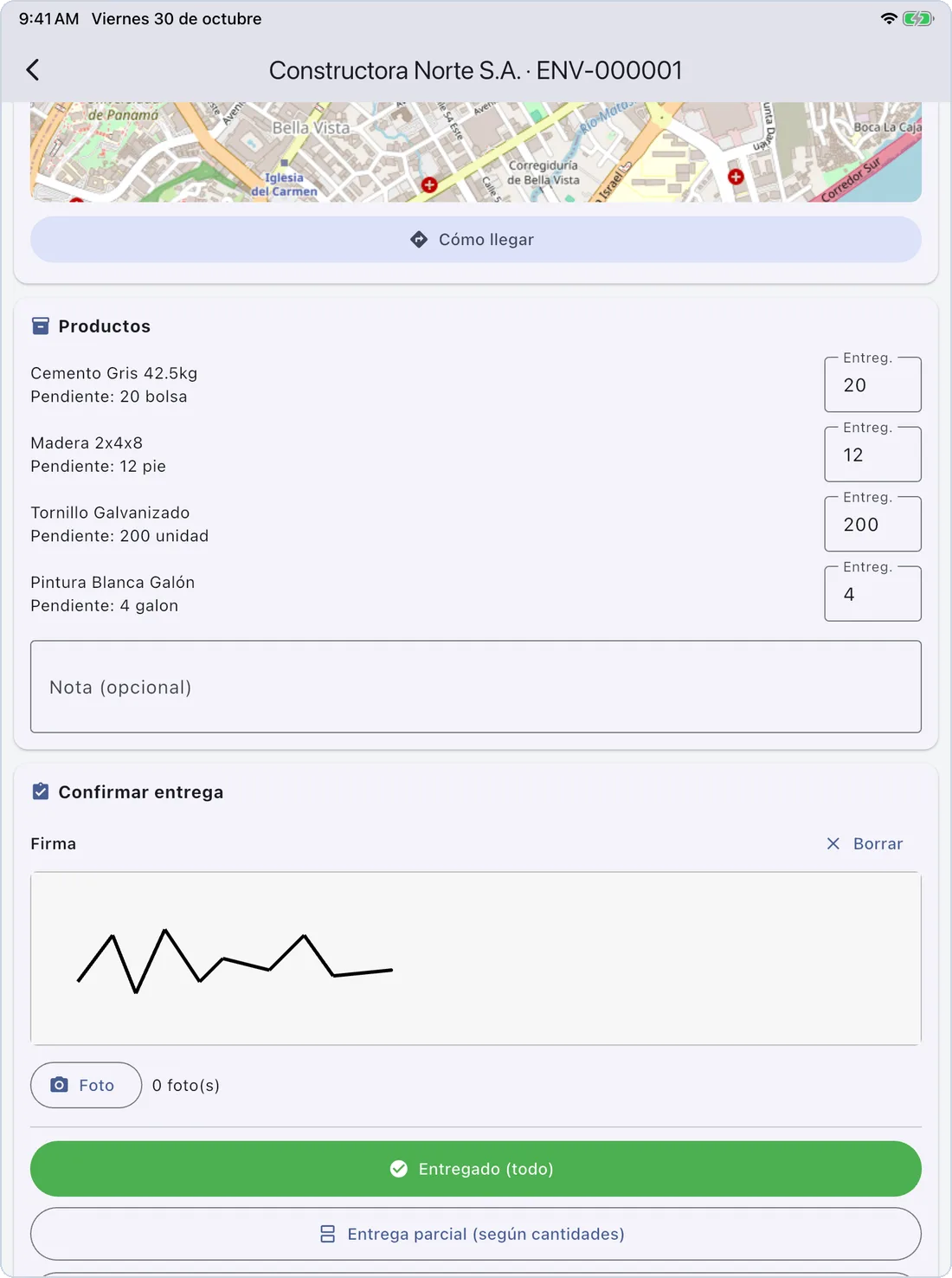
Signature, photo and the three results.
Each result asks for confirmation and says what will happen and whether there is a signature and photos:
| Result | What happens |
|---|---|
| «Entregado (todo)» | The whole order is marked as delivered. |
| «Entrega parcial (según cantidades)» | The quantities in «Entreg.» are delivered; what isn't delivered goes back to the warehouse. |
| «Entrega fallida» | Nothing is delivered; all the goods go back to the warehouse. |
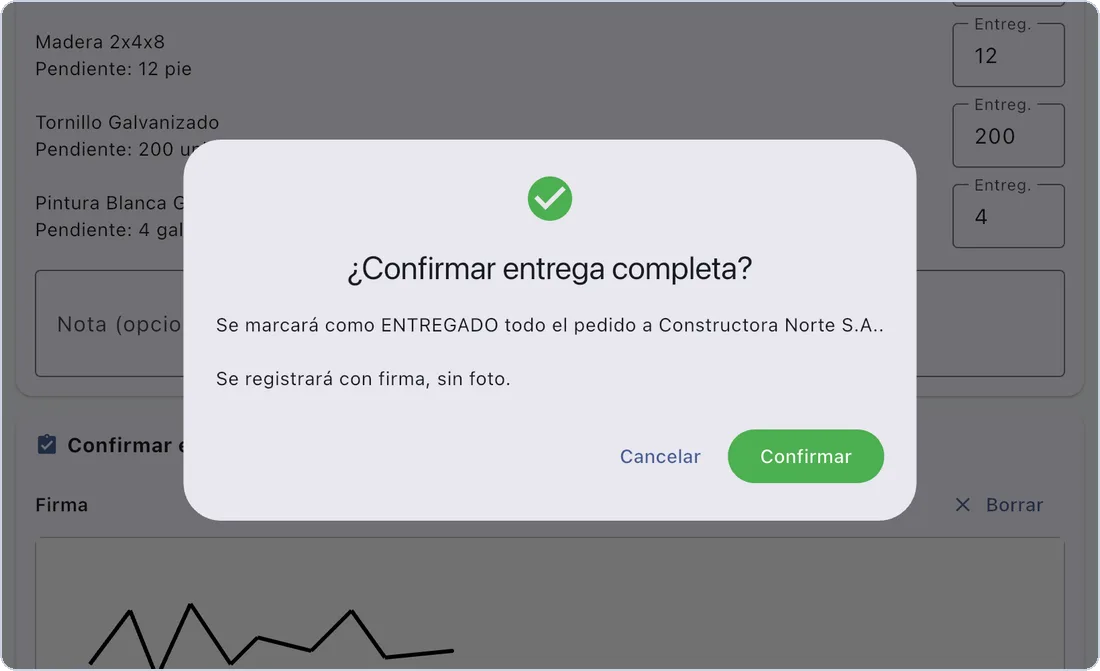
Confirmation of a complete delivery.
After «Confirmar» (Confirm) the app says «Entrega registrada. Se sincronizará automáticamente.» (Delivery recorded. It will sync automatically.) and goes back to the list.
Without signal
The app is made for routes without coverage:
- Before leaving, open the app with signal and pull the list down, so the day's deliveries are on the device.
- Without signal, the list shows «Sin conexión» and everything still works: open deliveries, change quantities, collect the signature and take photos.
- Each delivery recorded without signal waits on the device. Next to the cloud at the top, an orange number shows how many are waiting.
- When the connection returns, the app sends them on its own (or pull the list down). The server never applies the same delivery twice, even if it is sent again.
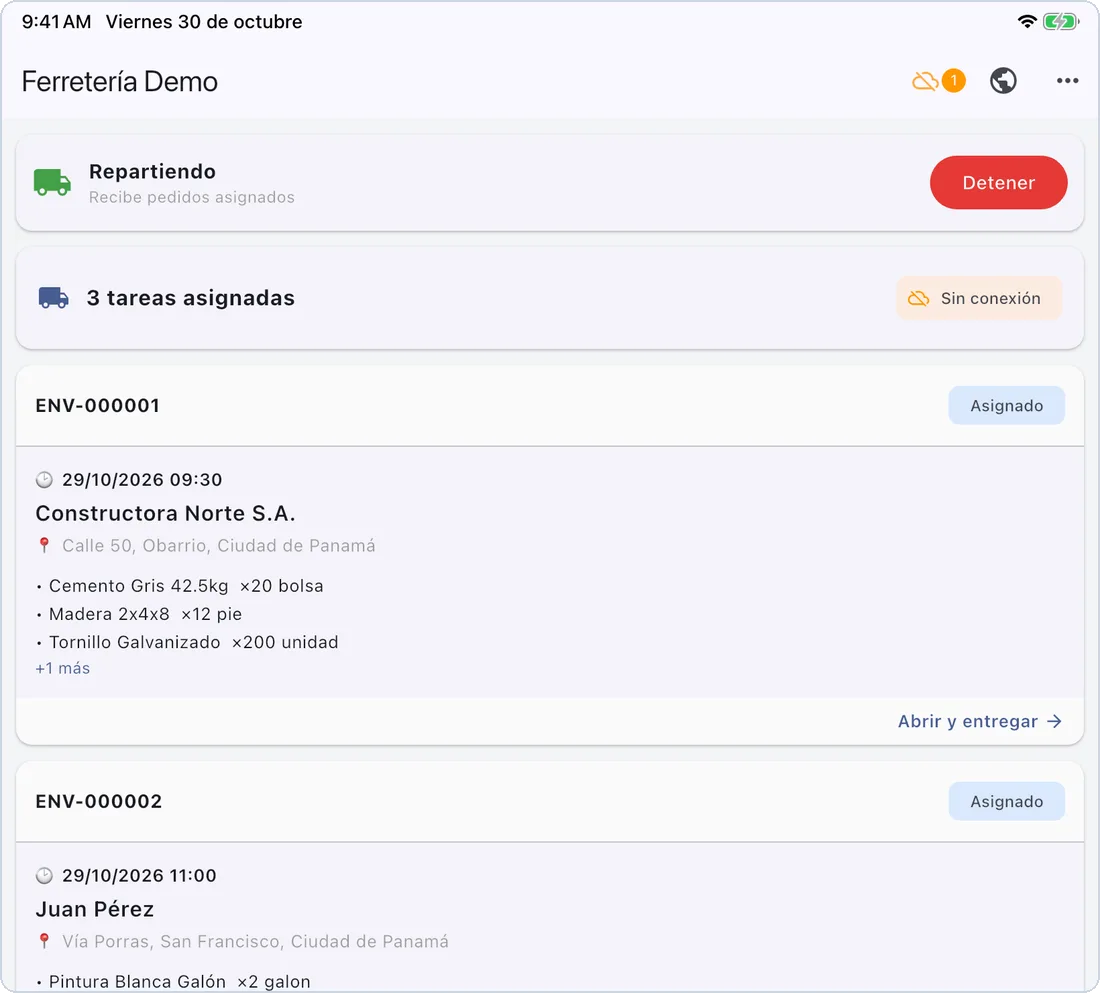
Without signal: «Sin conexión» and one delivery waiting to be sent.
Don't sign out with deliveries waiting
While the cloud shows a number, don't press «Cerrar sesión» and don't let another driver sign in on the device. The waiting deliveries are sent with the session of whoever signs in next: if that driver isn't the one assigned, the server rejects them and the app discards them. The same happens if the delivery was closed or reassigned in the POS in the meantime.
The full POS
The globe button opens the full POS inside the app, with connection. If you open a delivery page from there, the app shows its own list instead («Entrega sin conexión (módulo integrado)»), so deliveries are always made with the screens that work without signal.
Common messages
| Message | What to do |
|---|---|
| «Usuario o contraseña incorrectos.» | Check the user and password. After several failures the server asks you to wait («Demasiados intentos…»). |
| «Esta cuenta no puede realizar entregas.» | The user needs the Envío role. |
| «No se pudo conectar a ningún servidor (local ni público).» | Neither address answers. Check the connection or the addresses («Reconfigurar servidor»). |
| «Sin conexión al servidor.» | «Iniciar» / «Detener» need connection; try again with signal. |
| «Sin entregas asignadas.» | There is nothing assigned to this driver. Pull down to sync. |
| «No se pudo abrir la app de mapas.» | Install or enable a maps app on the device. |
| «Sin conexión» with good signal | The app signs in but the server rejects the rest of the requests. Tell the technician: it is usually a setting of the web server. |