HWD POS for desktop
The Windows and macOS app for registers, sales counters, warehouse and office - installation, first start, card reader, printing and diagnostics.
HWD POS for desktop is the app for the store's computers: cash registers, sales counter, warehouse and office. It opens HWD POS in its own window and adds what a web browser can't do: it identifies the computer as a terminal, uses the 3R ID Tap card reader by USB and can start in full screen. This page covers version 0.2.13 of the app with HWD POS 1.0.27.
It needs the server all the time. If the connection is lost, the POS can't be used until it comes back.
Requirements
| Windows | macOS | |
|---|---|---|
| System | Windows 10 or 11, 64-bit | macOS on Apple silicon or Intel |
| Installer | .exe or .msi | .dmg |
| Installed in | C:\Program Files\HWD POS, for all users (needs an administrator) | Applications |
The screen should be at least 1024 × 700. Windows 10 and 11 already include WebView2, the component the app uses to show the POS.
Installation
3R Soft gives you the installers. Install the same version on every computer of the store.
- Run the
.exe(or the.msi) and accept the administrator prompt. - Follow the steps. The app is installed in
C:\Program Files\HWD POSfor every user of the computer, with a shortcut called HWD POS. - The installer also adds the HWD POS Diagnostics service, which records failures of the program (see below). Copying only the program file, without running the installer, doesn't install the service.
To update, run the installer of the new version: the configuration and the registration of the terminal are kept.
First start
The first time, the app opens its setup window.
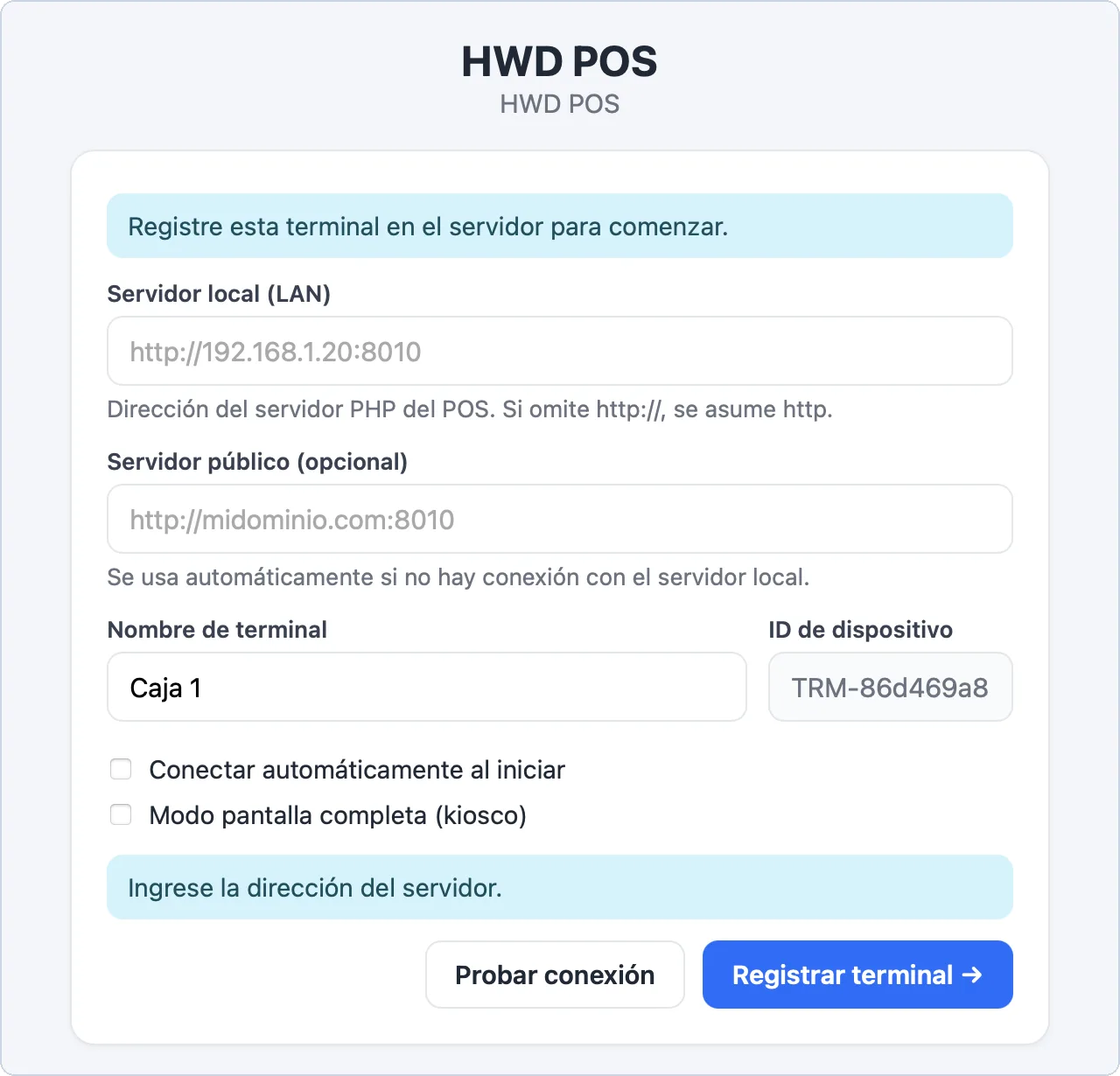
First start: server addresses, terminal name and device ID.
| Field | What it is |
|---|---|
| «Servidor local (LAN)» (Local server) | The server's address on the store's network (server addresses). |
| «Servidor público (opcional)» (Public server, optional) | Used automatically when the local address doesn't answer. |
| «Nombre de terminal» (Terminal name) | How this computer will appear, for example Caja 1 (Register 1). |
| «ID de dispositivo» (Device ID) | Generated by the app; it identifies this computer. It can't be changed. |
| «Conectar automáticamente al iniciar» (Connect automatically on start) | The next starts go straight to the POS. |
| «Modo pantalla completa (kiosco)» (Full screen mode, kiosk) | The POS opens in full screen. |
Type the server address and the terminal name.
Optionally press «Probar conexión» (Test connection). It answers «Servidor accesible» (Server reachable) with the response time, or the reason it couldn't connect.
Press «Registrar terminal →» (Register terminal). The administrator must have turned on automatic registration beforehand.
When the window says «Terminal lista» (Terminal ready) with the name of the terminal, press «Abrir POS →» (Open POS).
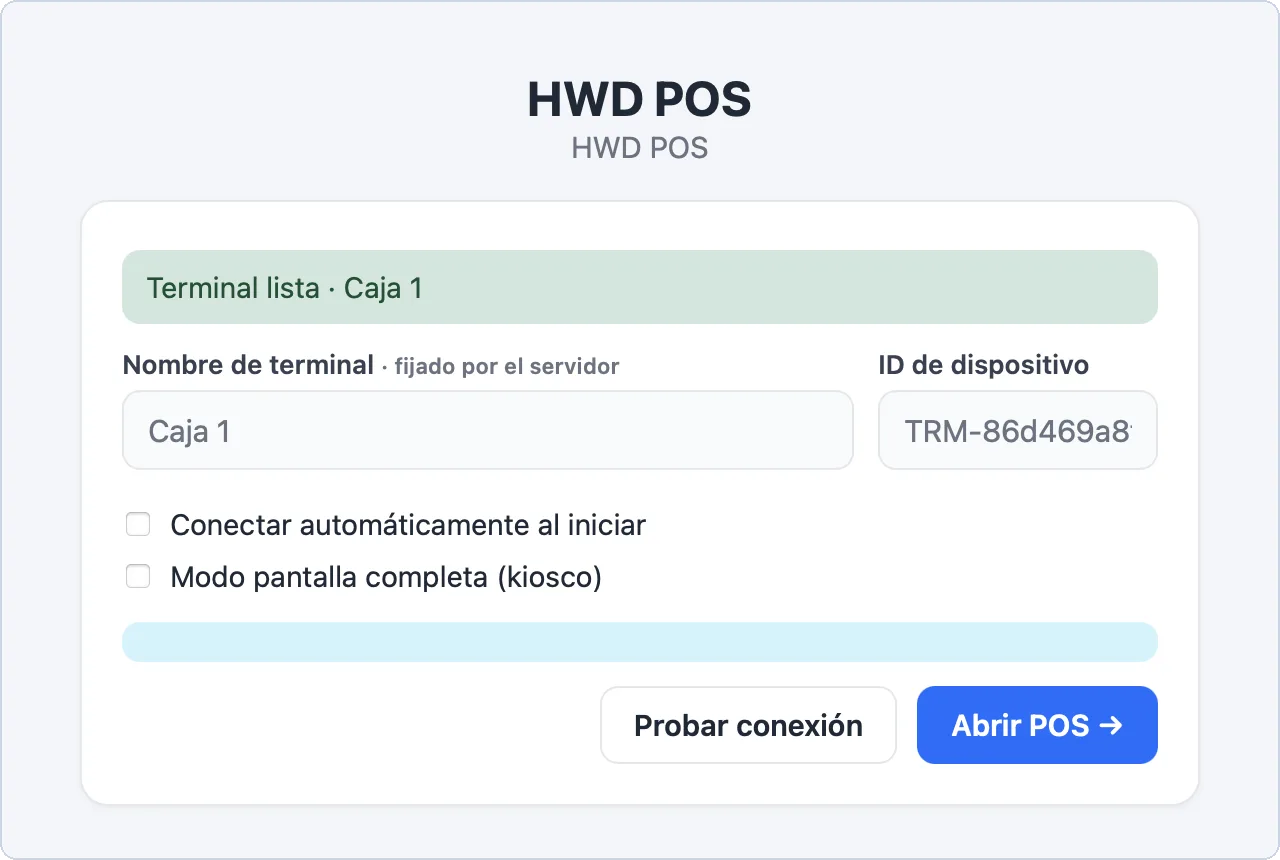
A registered terminal: the name is set by the server and «Abrir POS» opens the system.
After registering, the server address is hidden while the server answers, and the name shows «fijado por el servidor» (set by the server): it is changed in «Terminales». If the server stops answering, the address appears again so it can be corrected, with the message «No se pudo conectar al servidor. Verifique la dirección e intente de nuevo.»
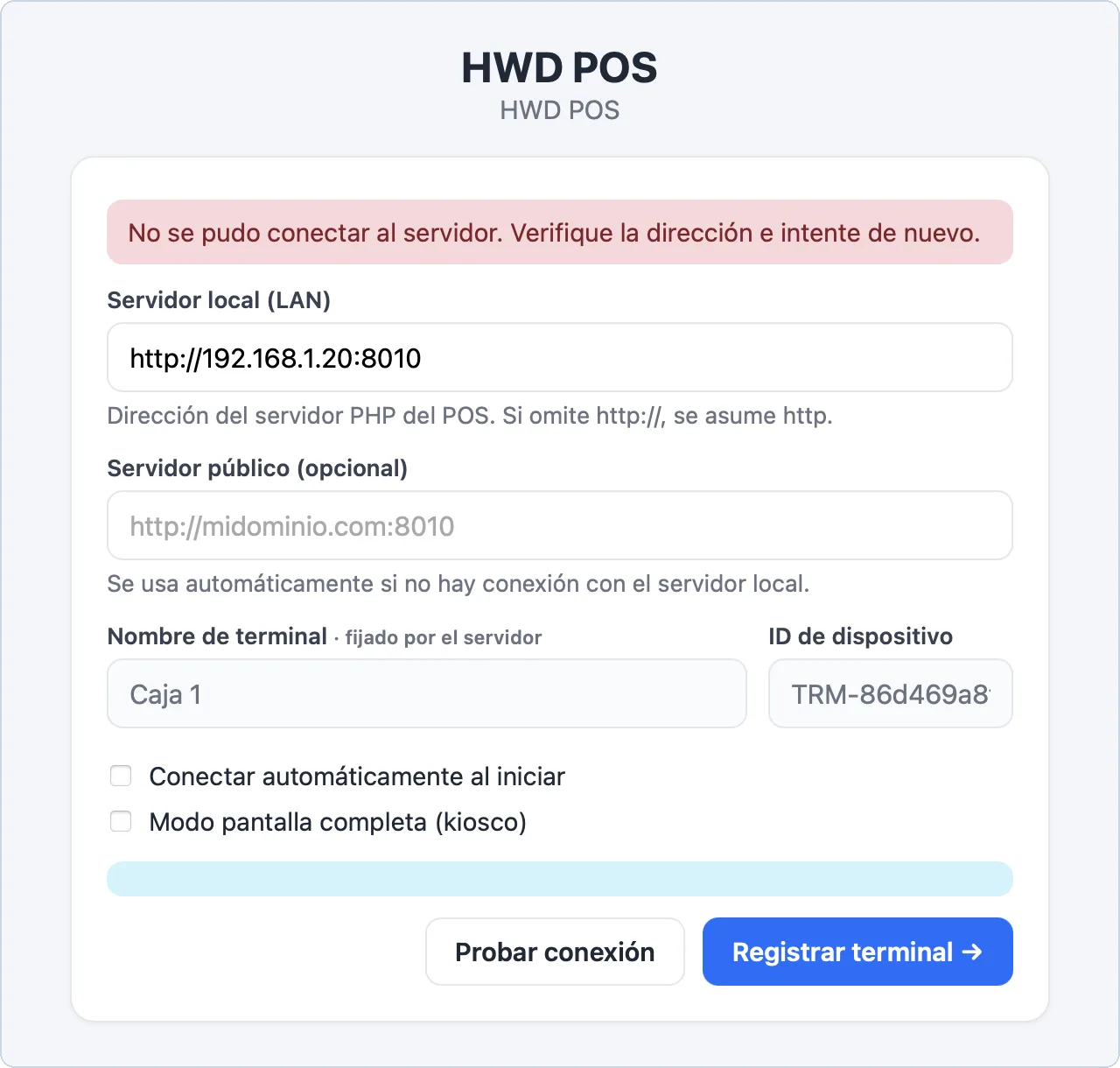
Without connection to the server: the address appears again to correct it.
Signing in
The POS sign-in screen shows the terminal already filled in, with «Detectado» (Detected), and the state of the card reader. The staff only type their user and password, or use their card (sign-in).
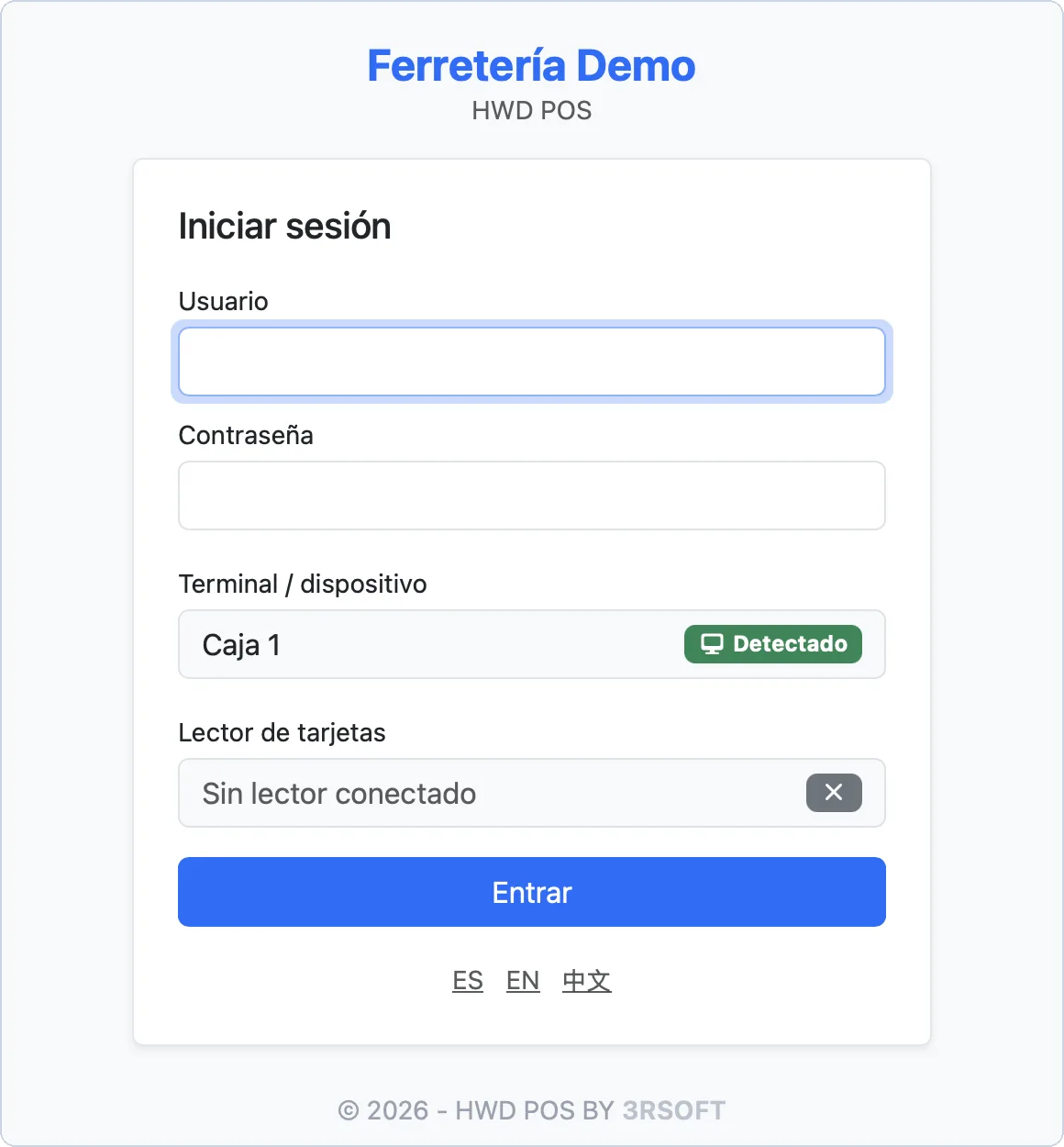
The POS sign-in in the desktop app: terminal detected and card reader.
The Terminal menu
The «Terminal» menu is always available, also while the POS is open:
| Option | Windows | macOS | What it does |
|---|---|---|---|
| «Configuración» (Settings) | Ctrl+, | ⌘, | Goes back to the setup window. |
| «Recargar» (Reload) | Ctrl+R | ⌘R | Reloads the current page. |
| «Pantalla completa» (Full screen) | F11 | F11 | Enters or leaves full screen. |
| «Imprimir página» (Print page) | Ctrl+P | ⌘P | Prints the page on screen with the computer's printers. |
The last option of the menu closes the app. Only one copy of the app runs per user: if it seems not to open, it is already open (perhaps minimized or behind another window).
Card reader, barcode scanner and printing
- 3R ID Tap card reader. Connect it by USB, before or after opening the app: the app looks for it every few seconds. With the reader connected there is nothing to press: holding the card to the reader on the sign-in screen signs in. The «Lector de tarjetas» (Card reader) line on the sign-in screen says «Conectado» (Connected), «Sin lector conectado» (No reader connected) or «Lector no registrado» (Reader not registered). A new reader must be registered by an administrator in «Dispositivos» → «Equipos de identidad» (Devices → Identity devices).
- Barcode scanner. USB scanners that type the code like a keyboard work in any search box. On Windows the app turns off the browser shortcuts, so a scanner that ends each read with a line feed doesn't open other panels.
- Printing. Documents are printed from the print window of HWD POS, which sends them through the server to the printer you choose (printing). «Imprimir en navegador» (Print in browser) and «Imprimir página» use the computer's printer dialog.
- Customer signature on the tablet. In a credit sale, «Solicitar firma por QR» (Request signature by QR) shows a QR on the register. The counter tablet scans it and the customer signs there; the register shows «Firma recibida» (Signature received) as soon as they confirm (customer signature for credit sales).
Diagnostics on Windows
On Windows, the HWD POS Diagnostics service records failures of the app in a separate process, so it keeps recording even if the window freezes or closes. It doesn't restart the register or repeat any sale.
The setup window shows its state:
| Message | Meaning |
|---|---|
| «Diagnóstico activo. Los avisos y errores se guardan por separado.» | Everything is fine. |
| «El servicio de diagnóstico no está conectado. Repare la instalación para registrar fallos del programa.» | The service is missing or stopped. Run the installer again. |
| «El servicio no puede guardar los registros. Revise el espacio en disco y los permisos.» | The disk is full or the folder can't be written. |
The button «Abrir registros de diagnóstico» (Open diagnostic logs) opens the folder %ProgramData%\HWD POS\Diagnostics:
| File | What it records |
|---|---|
info.log | Start and stop, connection, normal exit and recovery. |
warning.log | First signs that the window doesn't respond, expired sessions. |
error.log | Sustained freezes, unexpected exits and page errors. |
The files contain no passwords, cookies, forms, customers or sales, and they aren't sent anywhere. They are kept after updating or uninstalling.
If the window goes blank or stops responding:
- Write down the time and what you were doing.
- Before closing the app, copy
warning.loganderror.log(and their numbered copies) from the folder above. - Send them to your technician with the time.
Common messages
| Message | What to do |
|---|---|
| «Registre esta terminal en el servidor para comenzar.» | First start: fill in the server and press «Registrar terminal →». |
| «No se pudo conectar al servidor. Verifique la dirección e intente de nuevo.» | Check the address and that the computer is on the store's network; test with «Probar conexión». |
| «No se pudo registrar: Este dispositivo debe activarse con un código de activación.» | Ask the administrator to turn on automatic registration. |
| «No se pudo registrar: Se alcanzó el límite de dispositivos.» | The license has no free places (license limit). |
| «El sistema no está activado en el servidor. Solicite la activación para poder usar el POS.» | The server's license must be activated by the administrator. |
| «No se pudo abrir el POS: Servidor no disponible. Revise la conexión y vuelva a intentarlo.» | The server stopped answering just when opening the POS; try again. |