Sign-in and main screen
Signing in, the main screen, global search, inactivity sign-out and the help assistant.
1.4 Signing in
- Open the HWD POS app (or the address your administrator gave you).
- Type your username and password.
- If you work at a physical register, check the terminal: the desktop app fills it in automatically.
- Press «Entrar» (Sign in). You can also press «Entrar con tarjeta» (Sign in with card) and hold your employee card to the reader (chapter K).
- To change the language use ES, EN or 中文 at the bottom of the window.
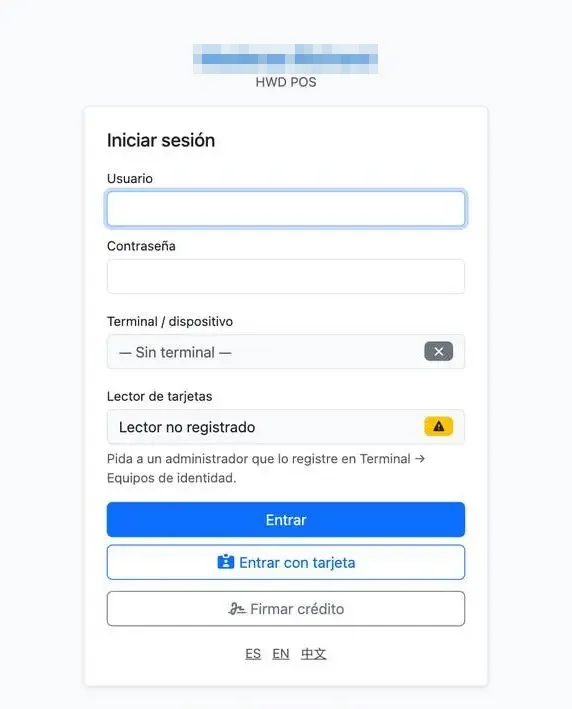
Sign-in on the desktop terminal: username, password, terminal and card reader.
On the tablet, the sign-in screen also has the «Firmar crédito» (Sign credit) button, which opens the customer signature by reading the code shown at the register (chapter B).
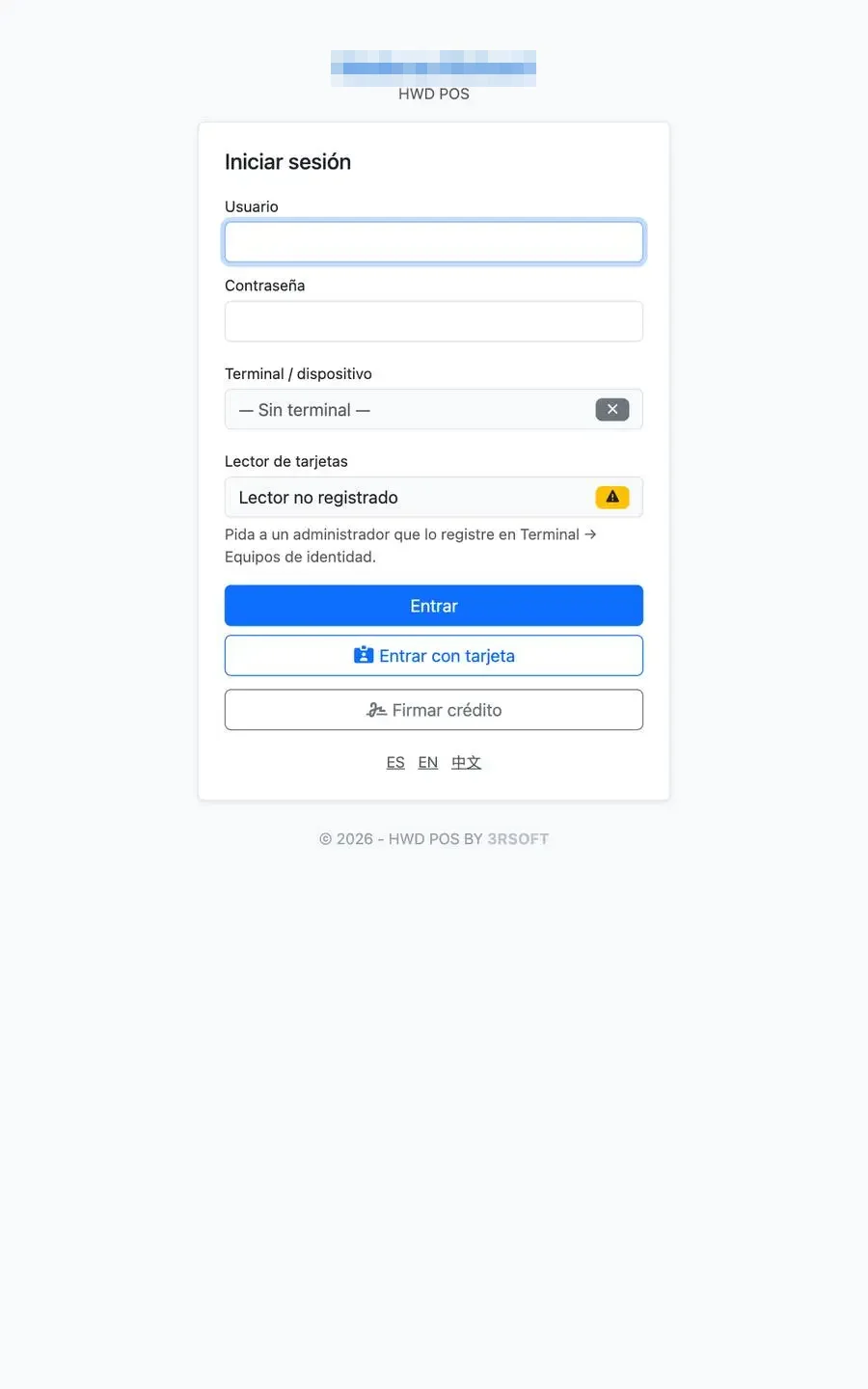
Sign-in on the tablet: «Entrar con tarjeta» and «Firmar crédito».
Caps Lock warning
If Caps Lock is on, the field shows the ⇪ symbol on the right. Turn it off before typing your password.
1.5 The main screen and search
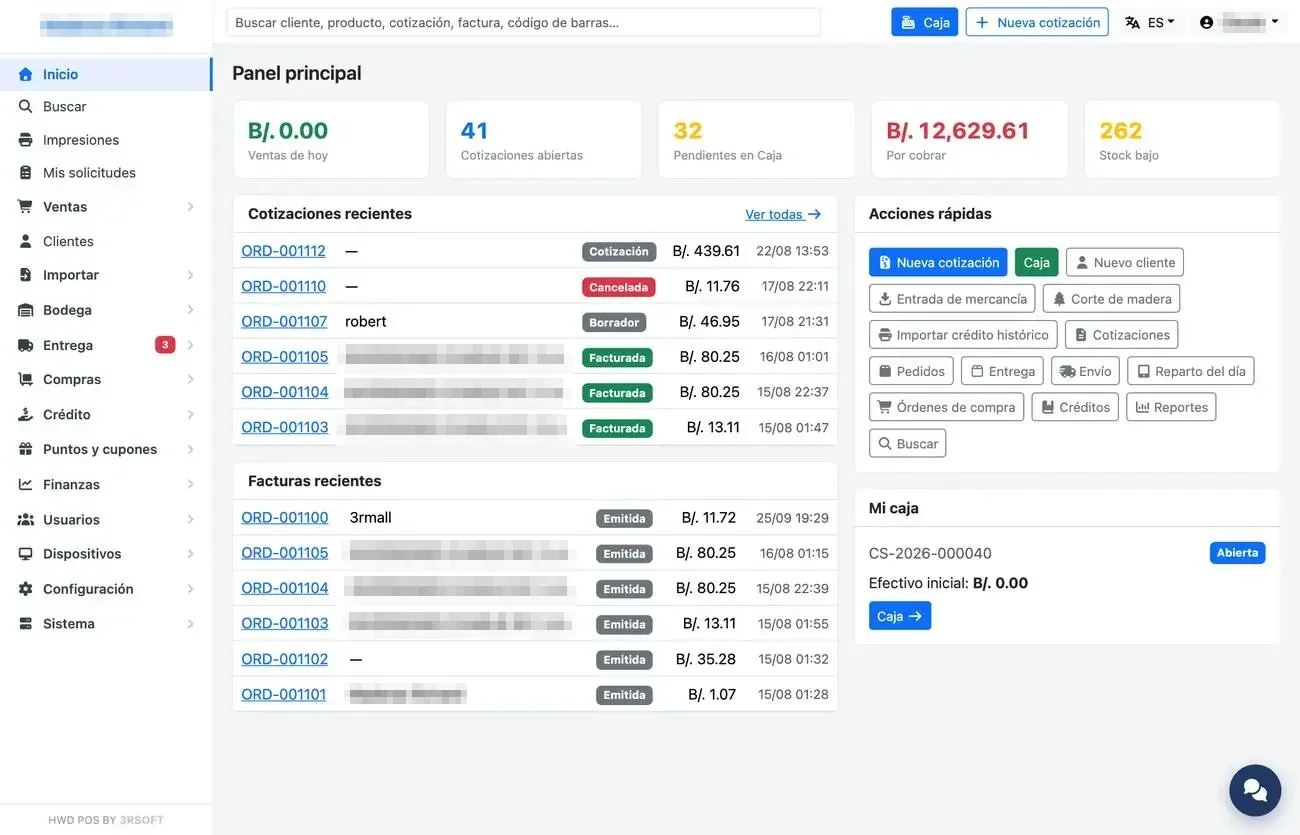
The main Panel (Dashboard) shows the day's indicators (today's sales, open quotations, pending at the register, receivables and low stock), the latest quotations and invoices and the quick actions. The side menu groups the modules; only what your role allows appears.
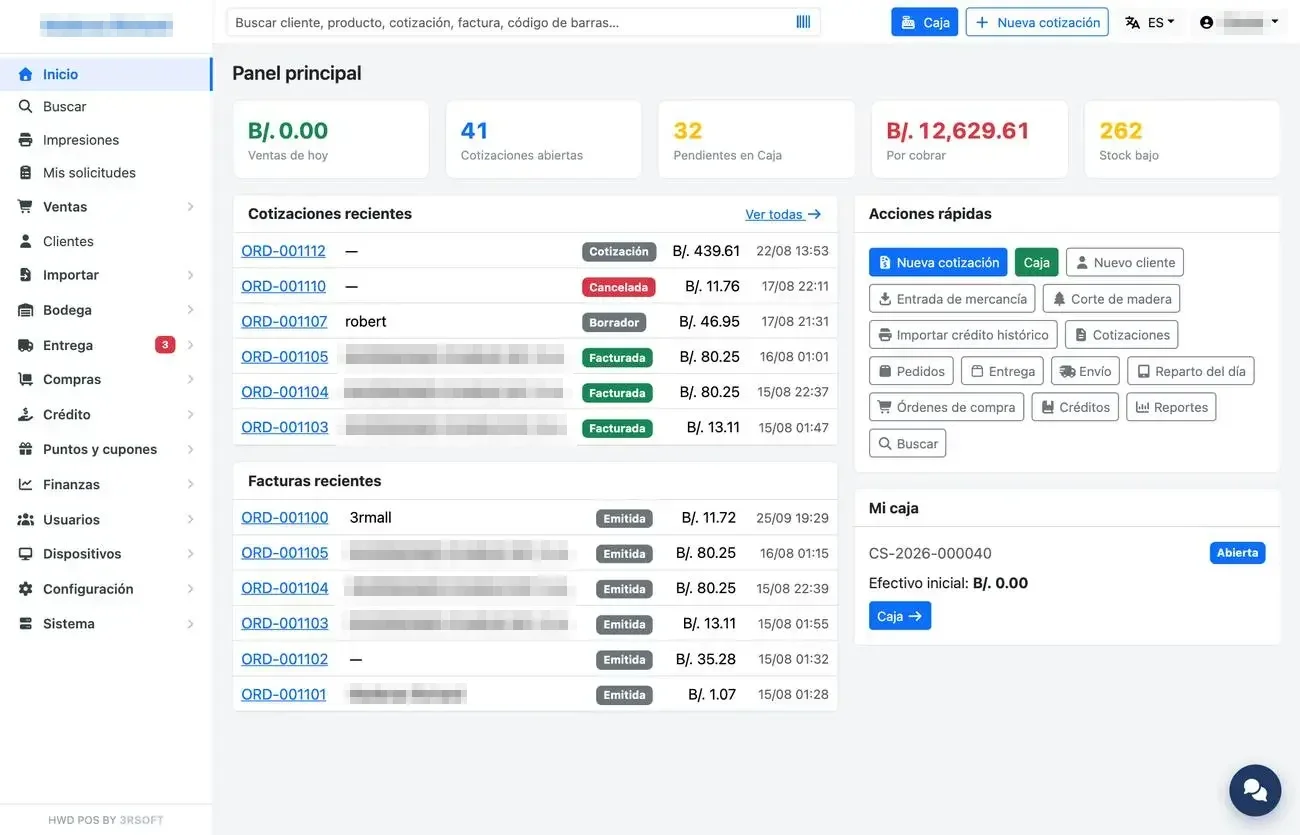
Main panel: indicators, recent documents and quick actions.
The top bar searches the whole system: customer, product, quotation, invoice, barcode or the bare number of an operation. With the barcode scanner there is no need to click: just scan.
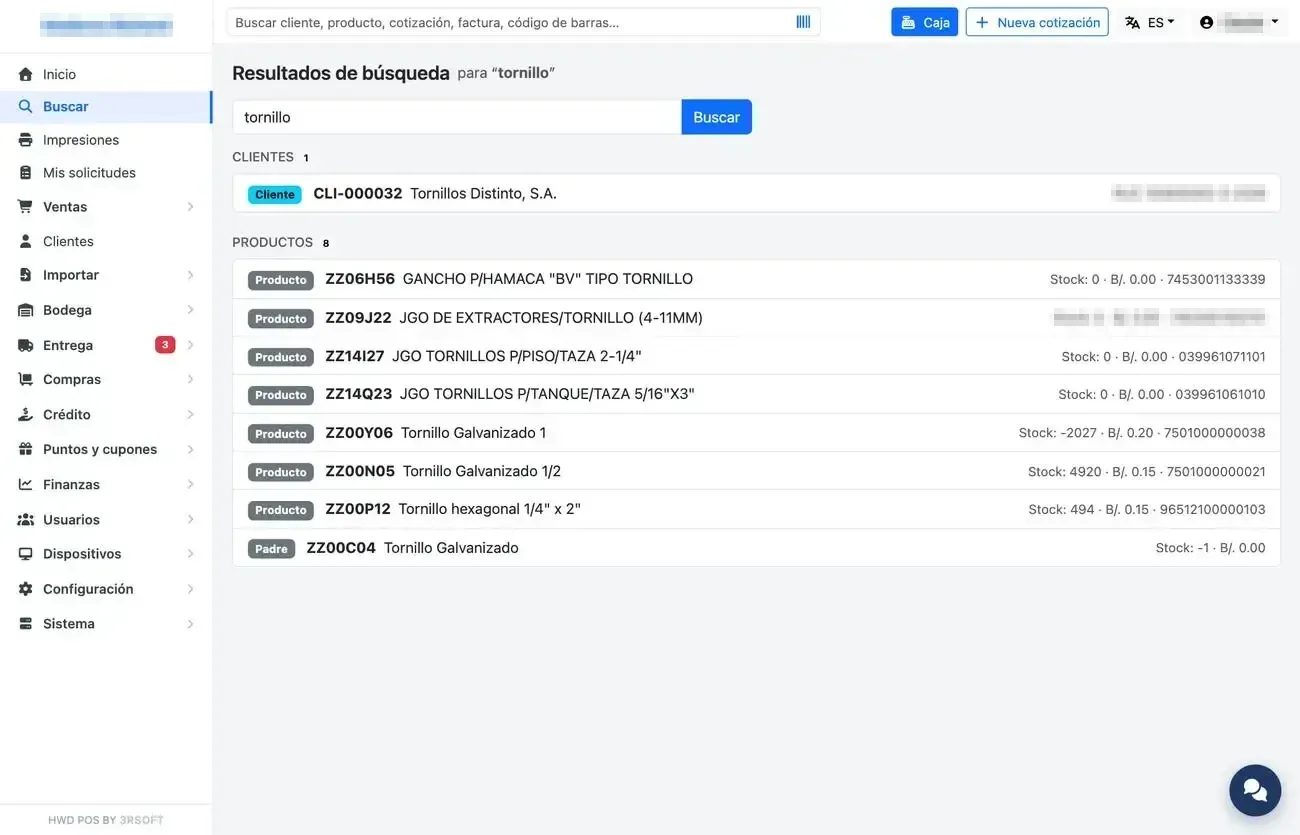
Global search results grouped by type.
| «General» option | What for |
|---|---|
| Impresiones (Print jobs) | Your print jobs and whether they printed or failed. |
| Mis solicitudes (My requests) | The approvals you requested and how they turned out; each row opens the detail. |
| Mi cuenta (My account; menu with your name) | Change your password and your language. |
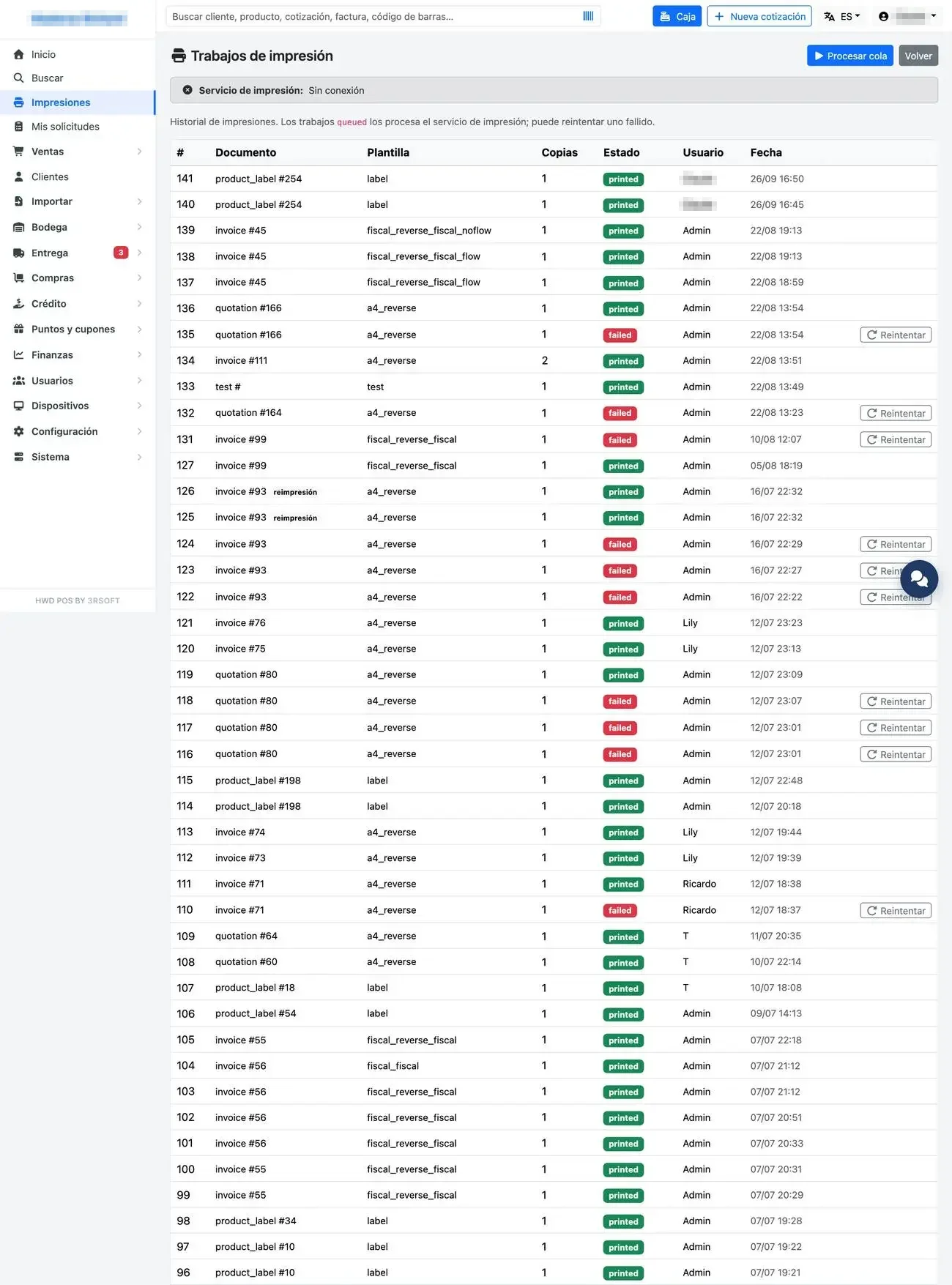
Print jobs.
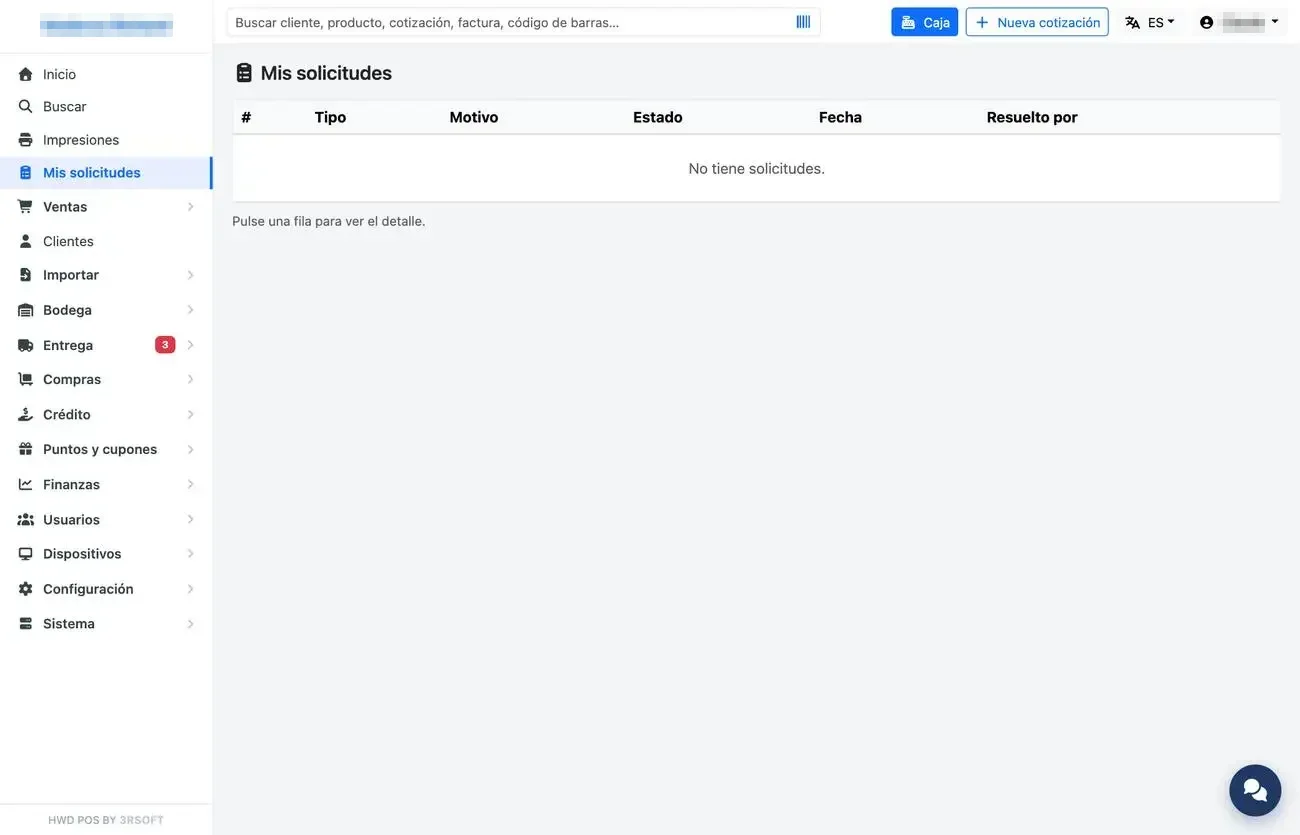
My approval requests.
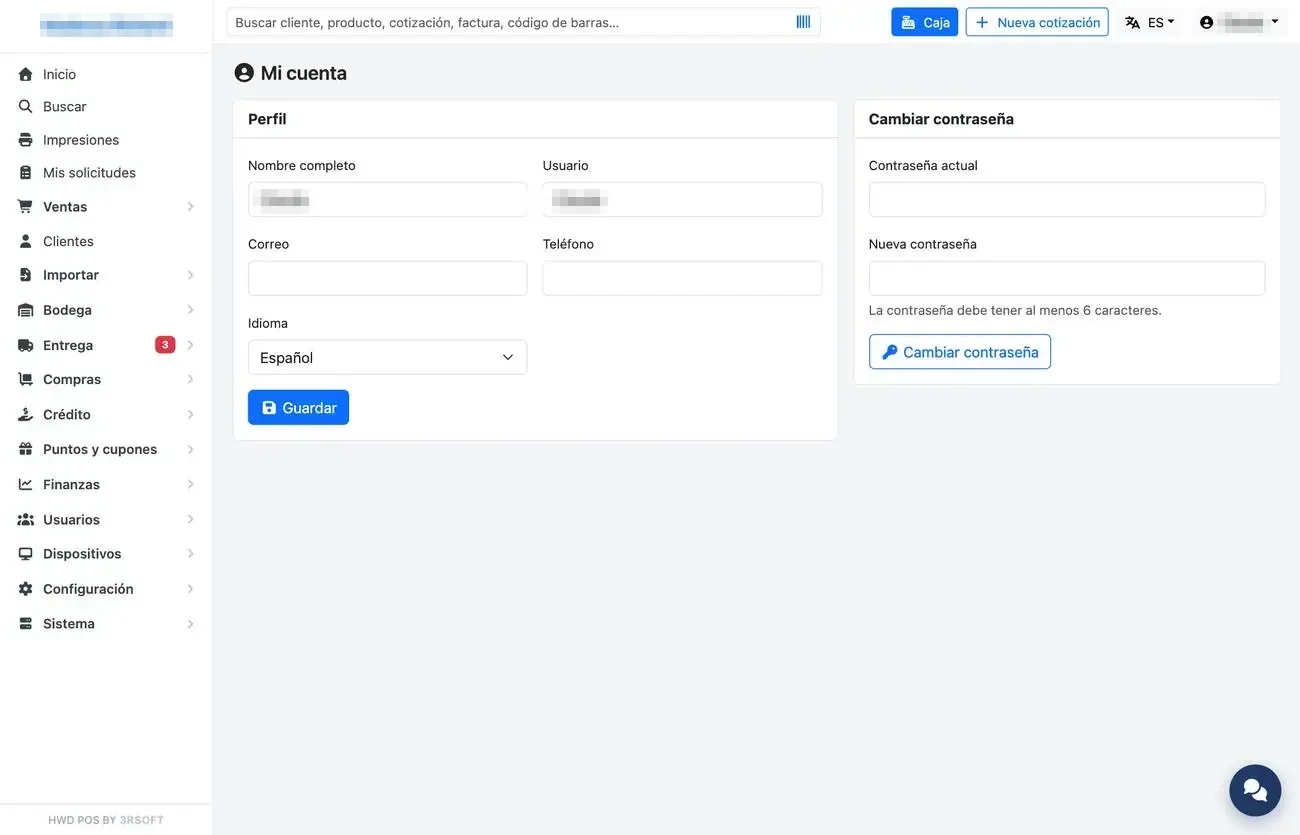
My account: profile, language and password.
1.6 Sign-out due to inactivity
If nobody touches the system for the configured time (60 minutes by default), the session closes on its own. A few minutes before, a window appears with a countdown.
- If you are still working, press «Seguir conectado» (Stay signed in). Only the button renews the session: moving the mouse or touching the screen is not enough while the window is open.
- If you don't press it, the session closes. A half-finished quotation is saved first.
- When you sign in again, the sign-in screen explains that the session was closed due to inactivity.
1.7 The help assistant
The blue bubble in the bottom right corner opens the help assistant. It answers based on the manuals, in the language you write to it, and does not stop you from continuing to work. Depending on your permission, it can also look up products, stock, customers and documents, or prepare a request for you (a customer, a product or a draft quotation) that you confirm with a button. It never deletes or voids anything.
The assistant open over the main panel.