Salesperson (Ventas)
Creating quotations, price requests, approvals, orders and price lookup.
The salesperson builds quotations: chooses the customer, adds products, applies discounts and sends it to the register for payment.
A.1 Creating a quotation
- Open Ventas (Sales) → «Nueva cotización» (New quotation).
- Choose the customer. If you don't choose one, «Cliente Genérico» (Generic customer) is used. You can create a new customer from there.
- If the customer is a company with departments, the Departamento (Department) field appears: when you choose one, the document moves to that department, with its credit, its limit and its price level.
- Add products by typing the name or scanning. Scanning does not ask for the model: the code already says it. Scanning the same item again adds one to its line.
- Adjust quantity, unit and price. A product that is only sold whole shows a warning on the line if you type a quantity with decimals.
- Apply discounts per line or per order; if they exceed your limit, approval is requested.
- Choose in-store pickup or shipping.
- Press «Guardar» (Save) or «Enviar a Caja» (Send to Cashier).
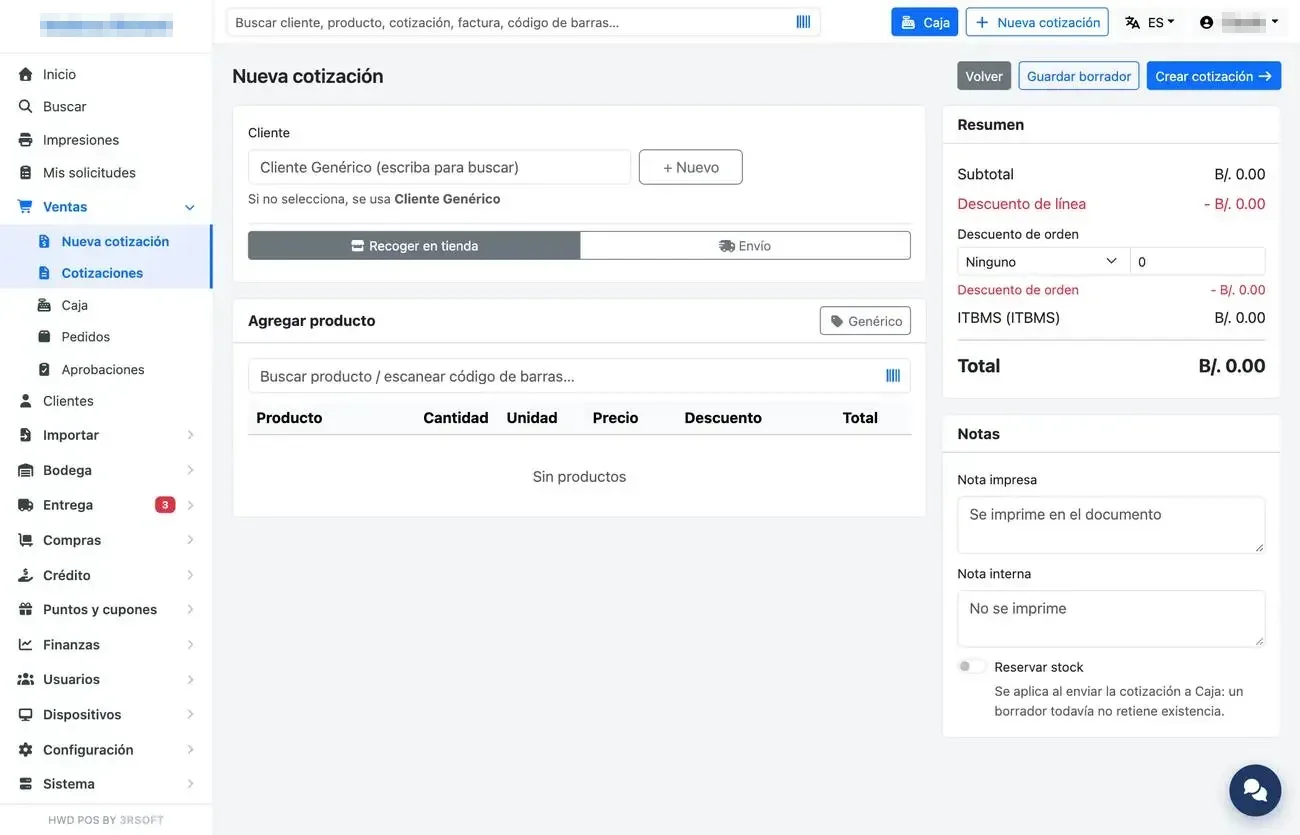
New quotation: customer, products and summary.
It saves itself
While you work, the quotation saves itself a few seconds after each change; «Guardado» (Saved) and the time appear next to the title. If you click a menu link with unsaved changes, the system asks: «Guardar y salir» (Save and leave) or «Seguir aquí» (Stay here). A reload loses nothing.
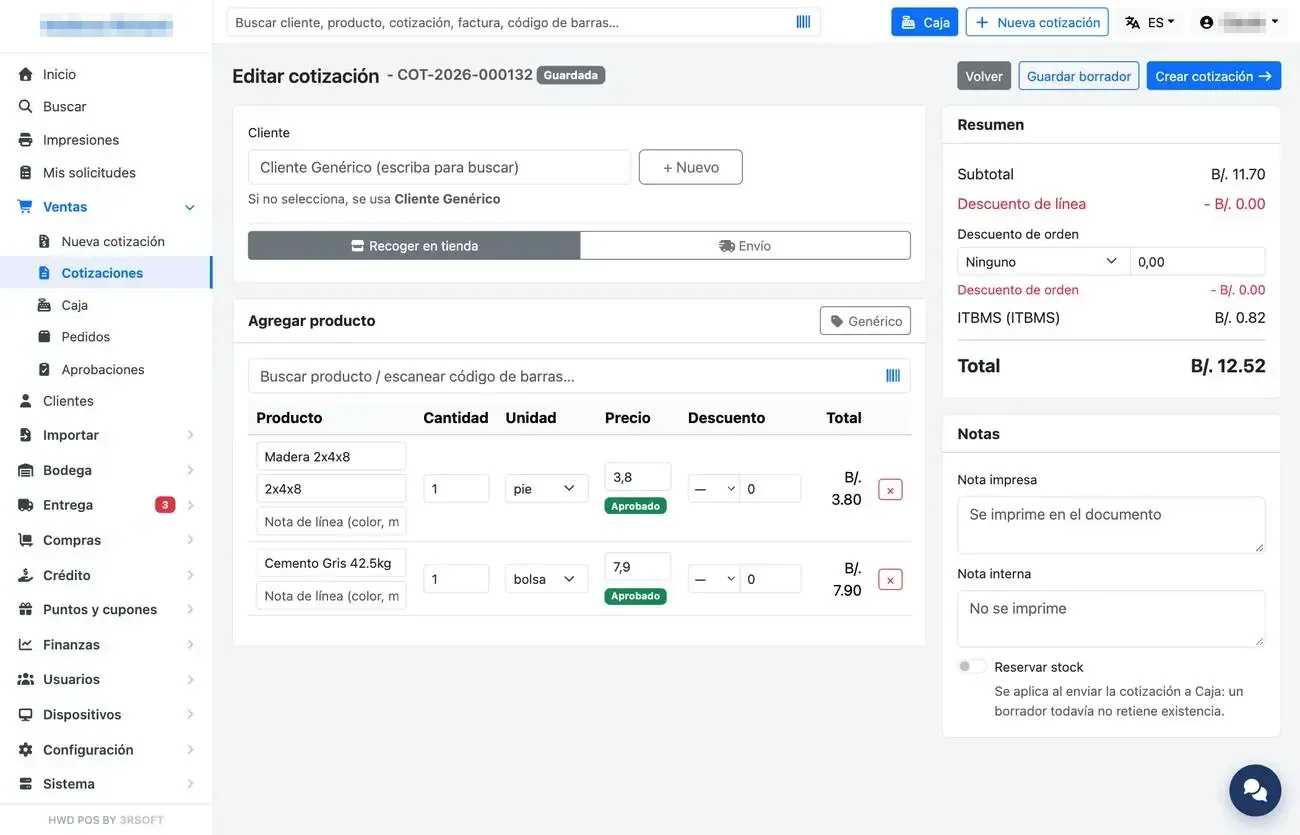
Editing a saved quotation.
Price 0.00
A quotation can be saved with a line that has no price (for example, while the price is being requested from management), but the register will not collect it until it has at least B/. 0.01.
A.2 Requesting a price from the manager
By double-clicking the line you can request a special price. The request is not sent at that moment: the line is marked and ALL of the quotation's requests travel together when you save it, in a single request. «Quitar solicitud» (Remove request) withdraws it as long as it has not been approved.
A.3 Quotation list and operation view
Ventas → «Cotizaciones» (Quotations) lists them all with their status. Opening one shows the full chain (quotation → order → invoice → delivery → shipment). The cards can be pressed: the invoice card takes you to the credit if the sale was on credit, and the delivery card to its note with the evidence.
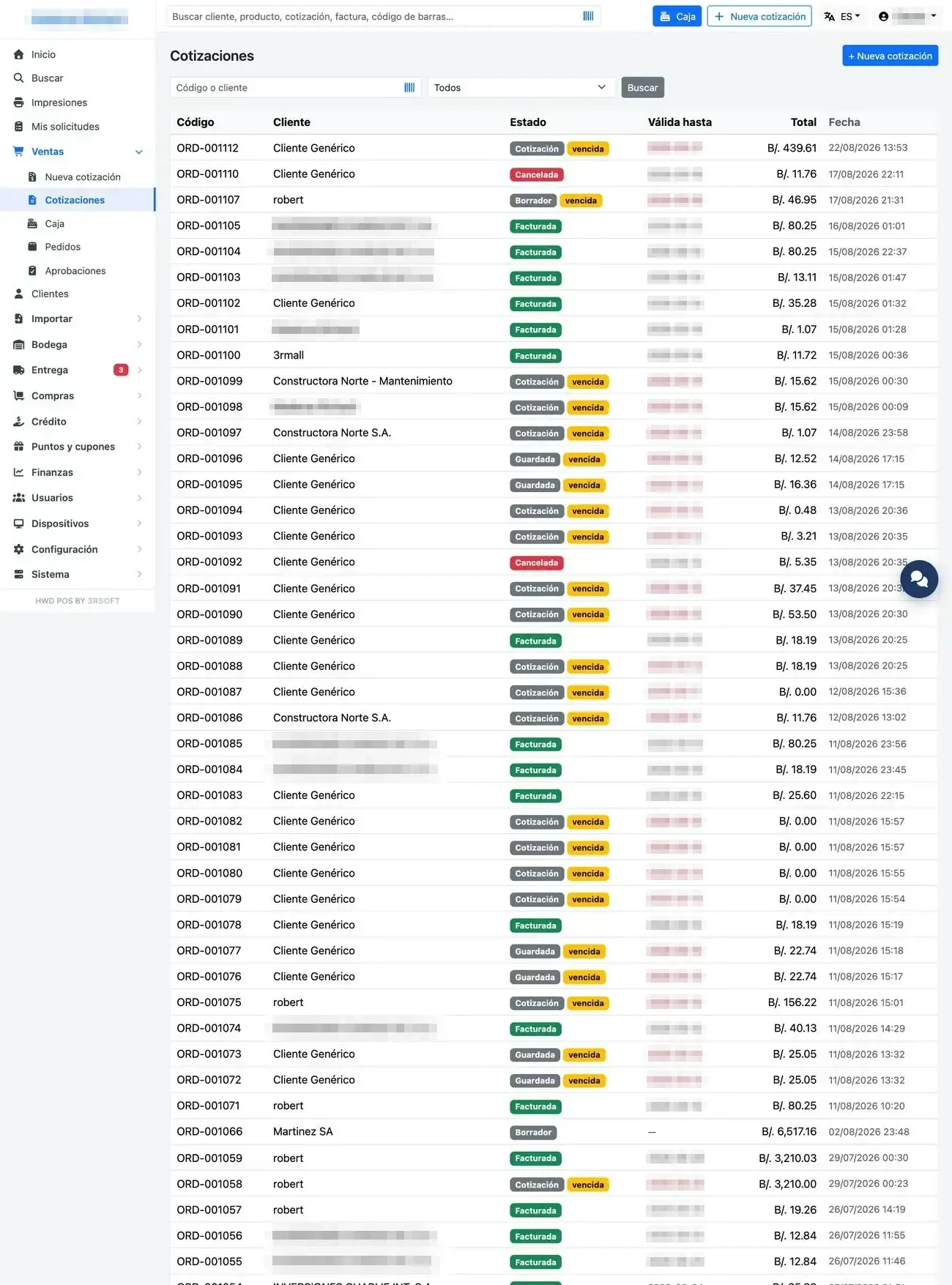
Quotation list with their status.
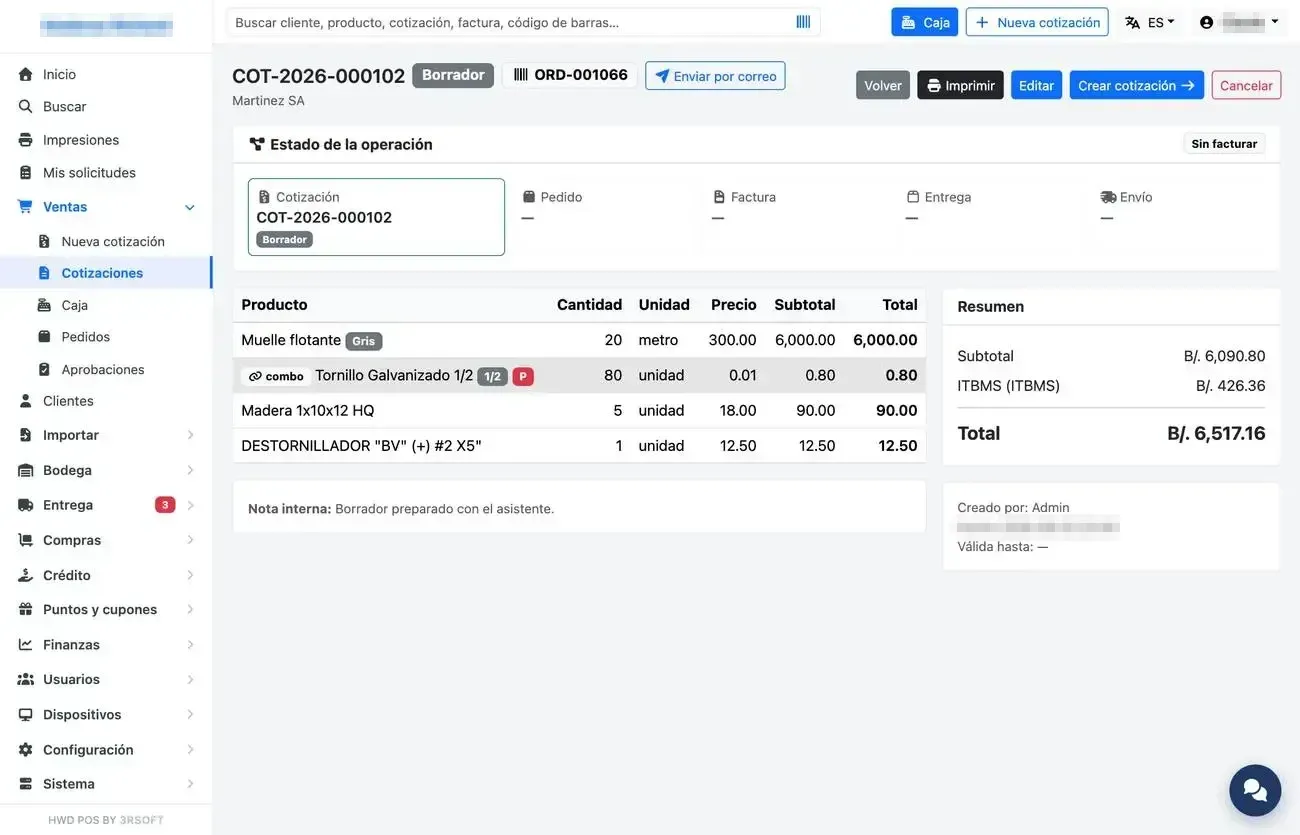
Operation view: document chain, lines and actions.
From the operation view, a manager can use «Enviar por correo» (Send by email) to send the customer the quotation, the receipt or the fiscal invoice, depending on what already exists. If the customer has no email, it is typed in the window and can be saved to their record by ticking the checkbox.
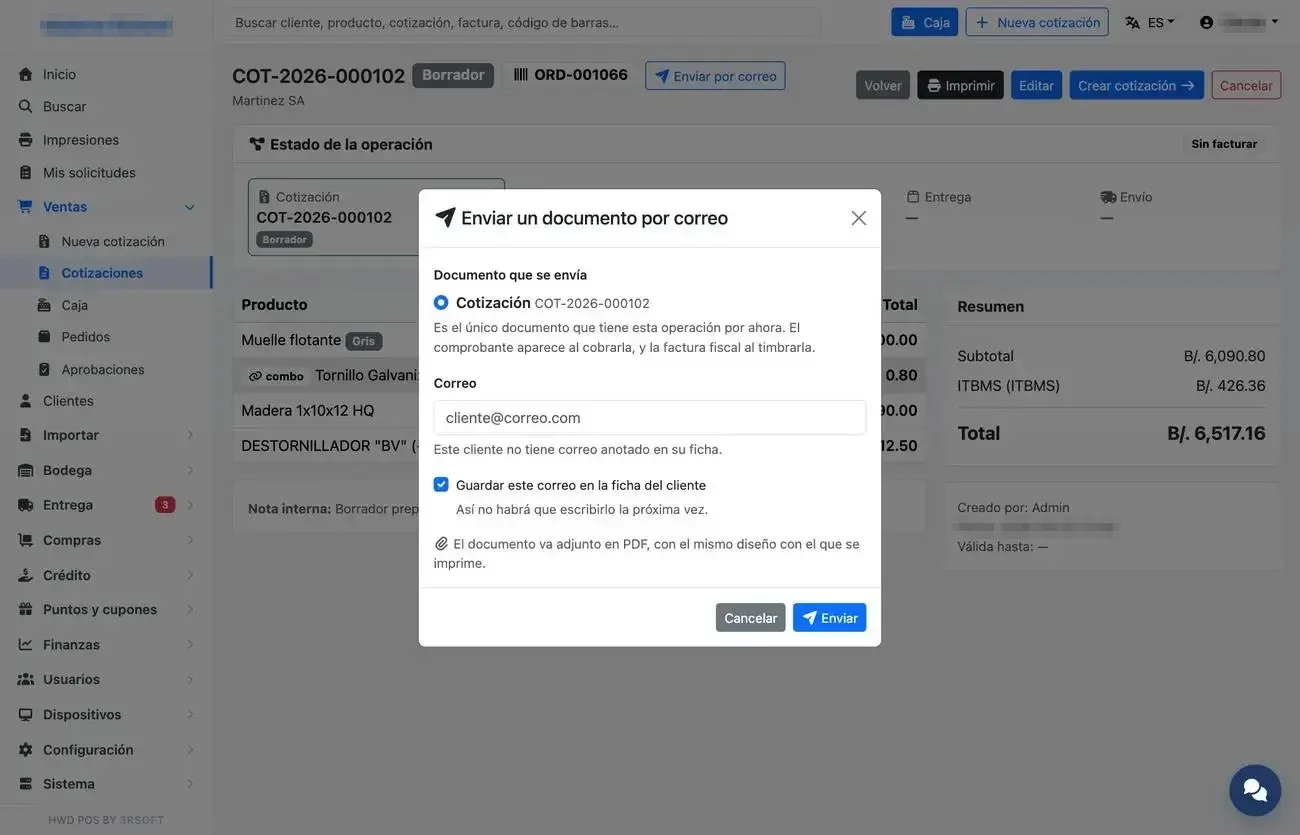
Sending a document by email manually: you choose which one and to whom.
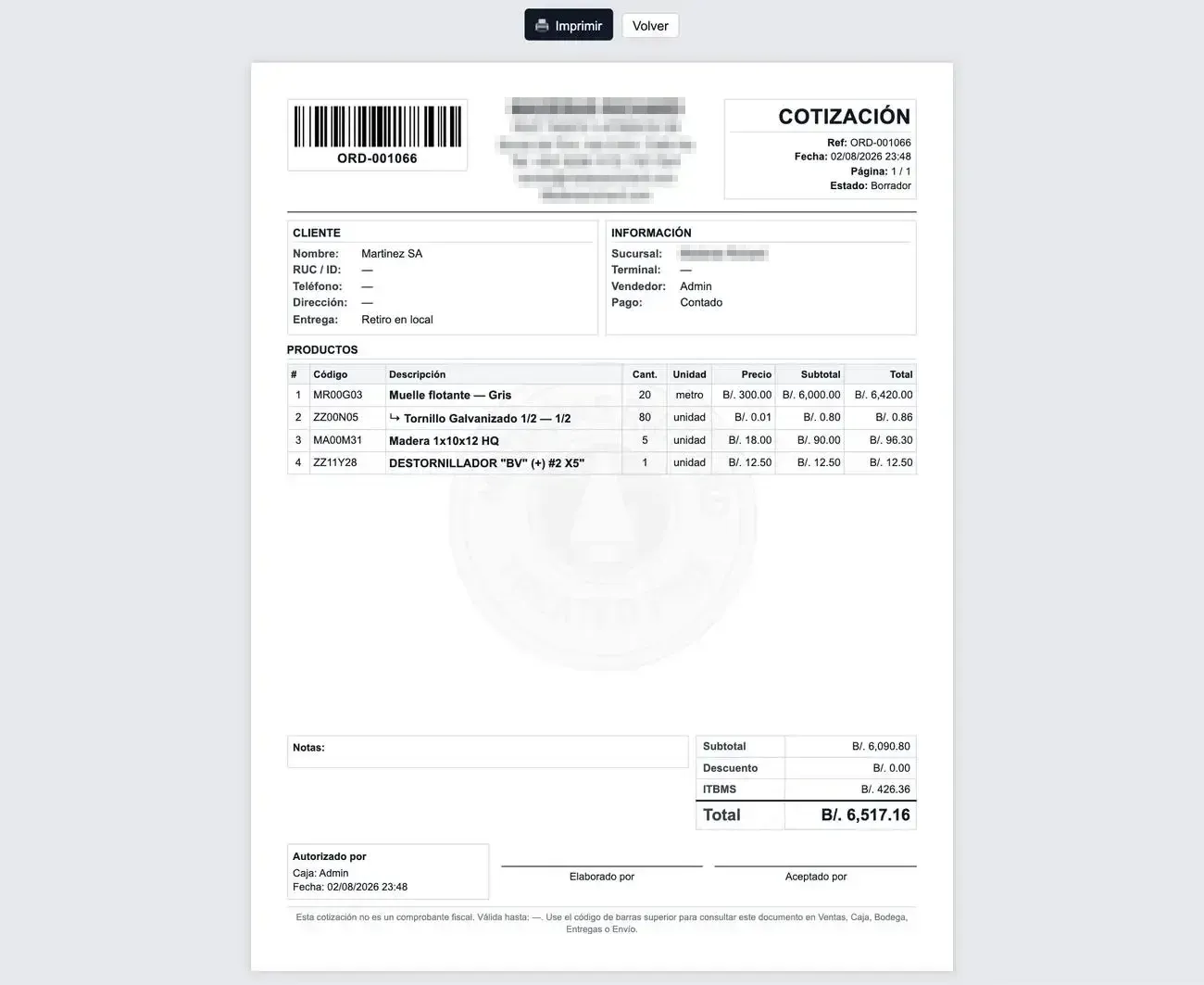
A4 quotation document.
A.4 Approvals and orders
Anything that needs a supervisor's permission waits in «Aprobaciones» (Approvals). Each row opens and shows the detail, product by product. You see your own in «Mis solicitudes» (My requests).
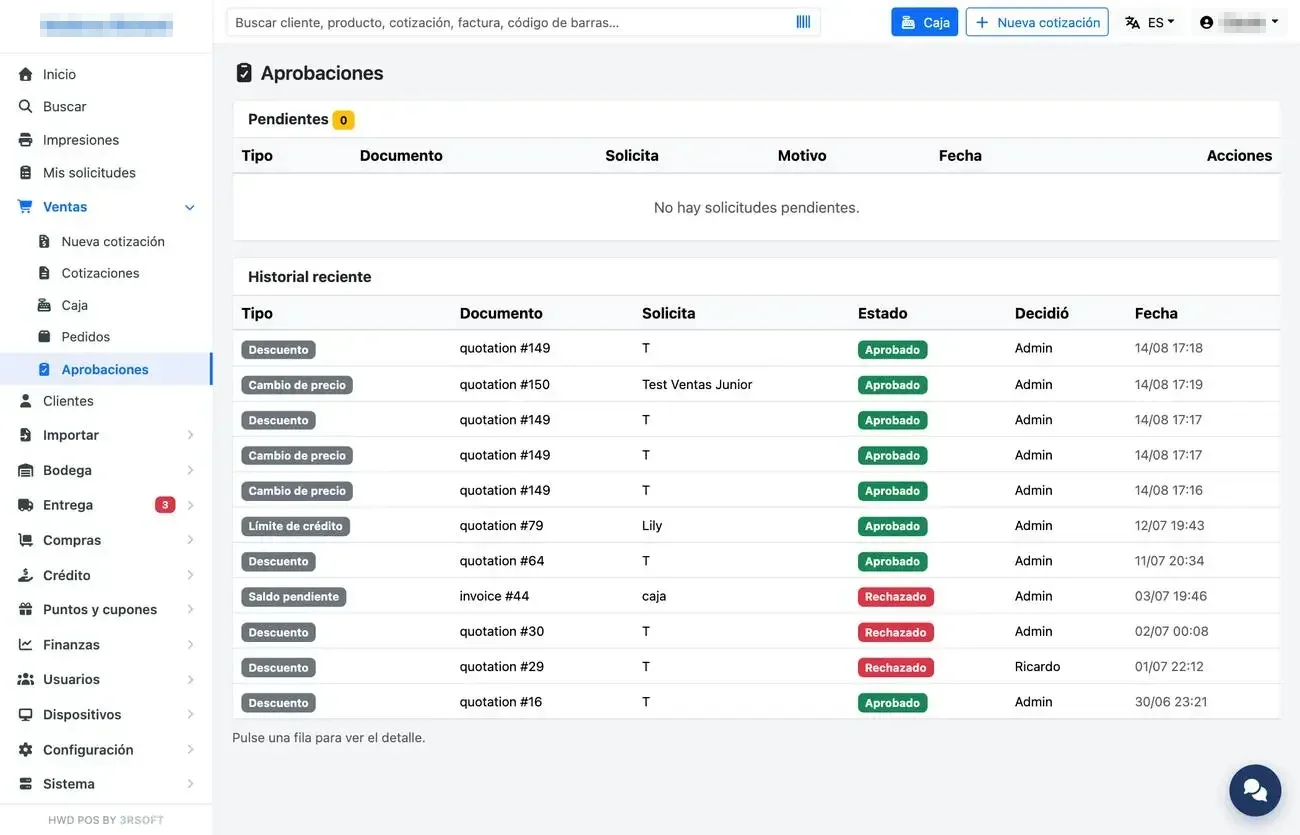
Approvals inbox (supervisor's view).
Ventas → «Pedidos» (Orders) lists the orders, with their payment and delivery status.
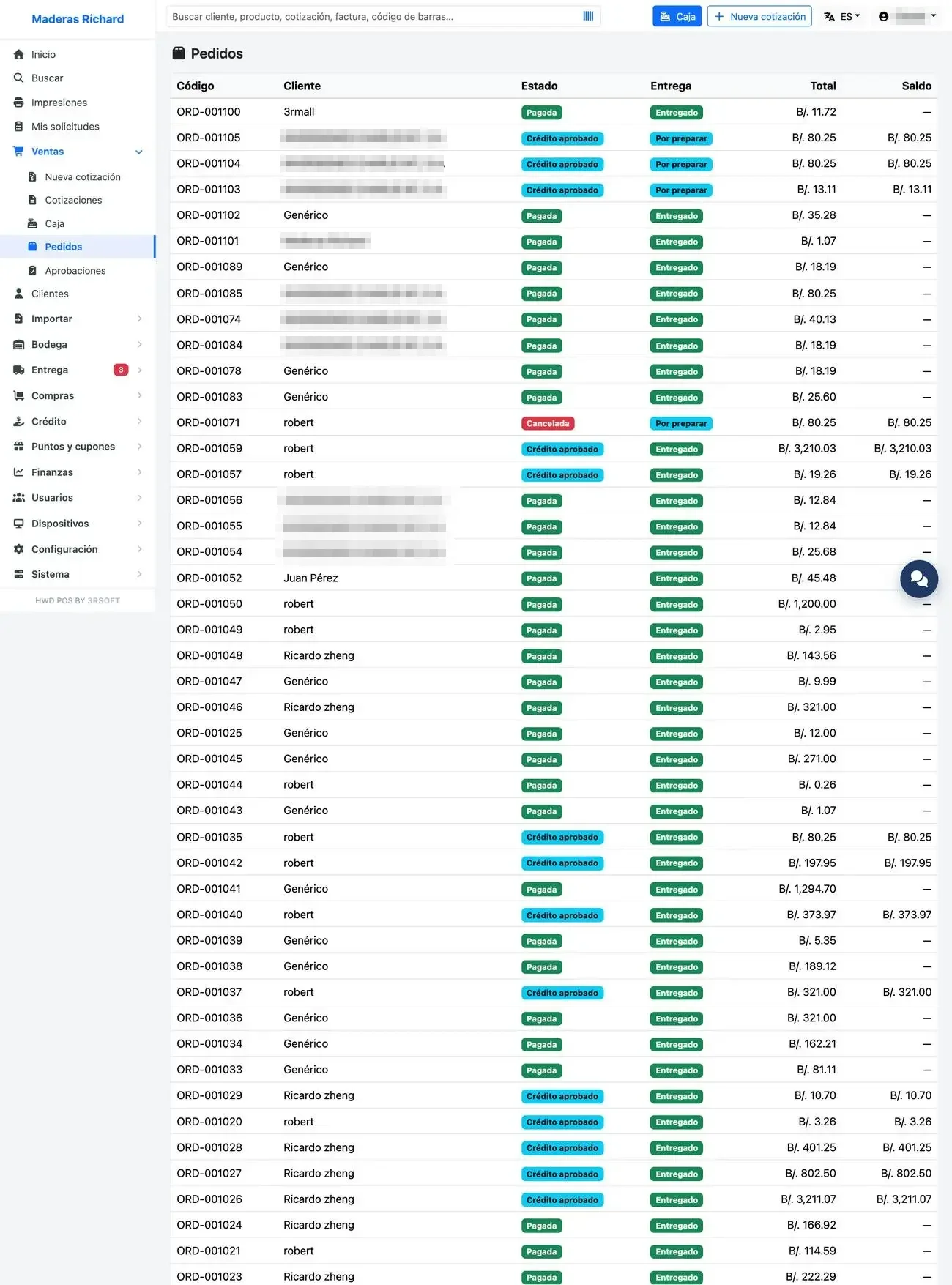
Order list.
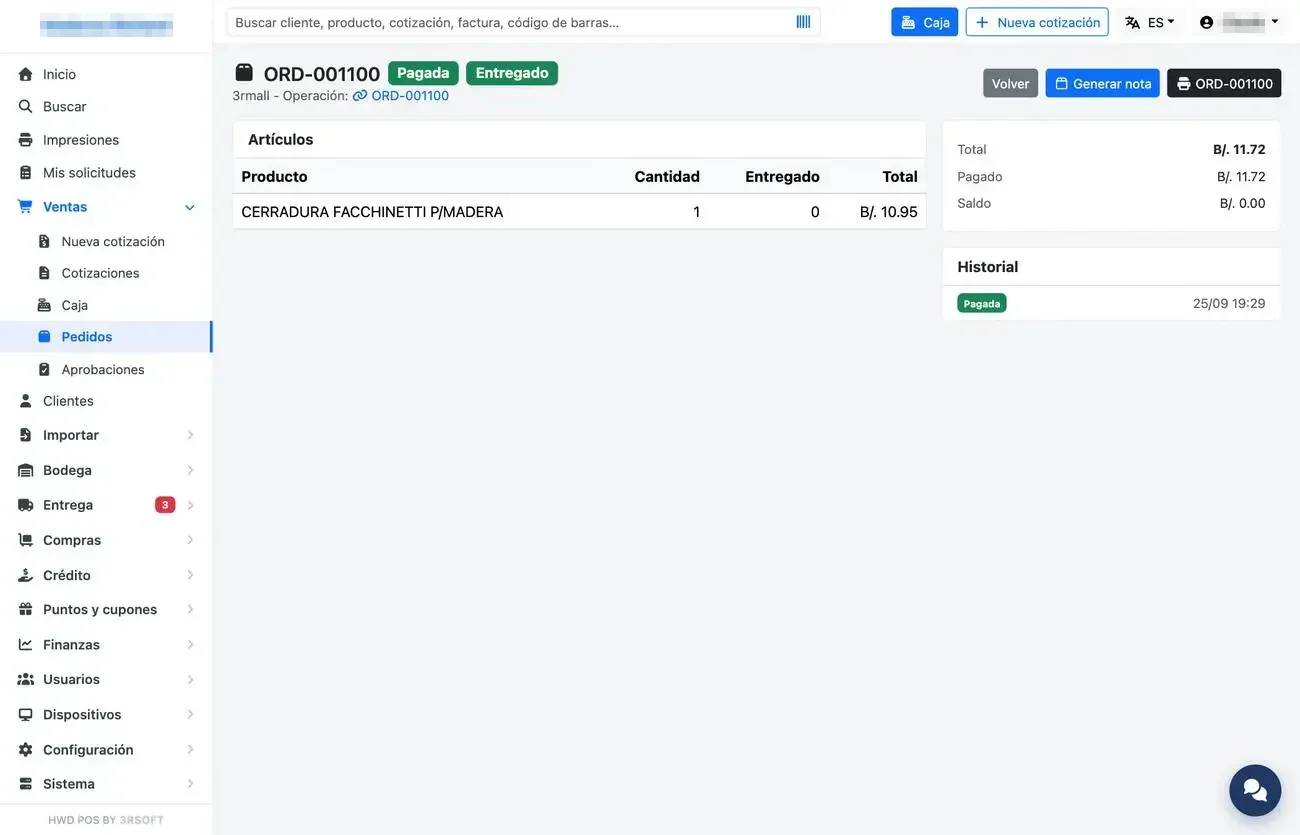
Order detail.
A.5 Price check
The price check screen is meant for a station where the customer scans a product and sees its price. It shows nothing else.
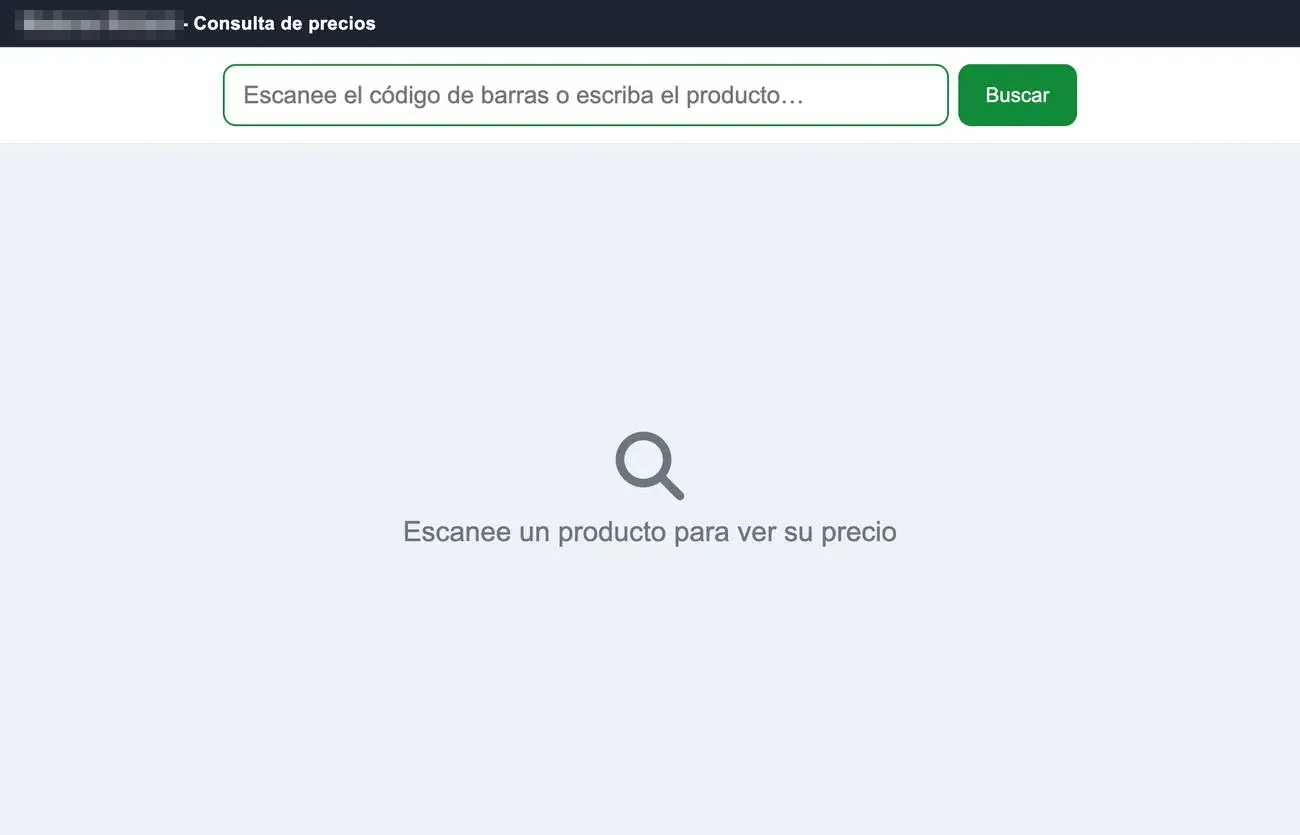
Price check by scanning.