Delivery (Entrega)
The Delivery board, preparing and handing over paid orders, and closing overdue deliveries in bulk.
Entrega (Delivery) prepares and hands over paid orders. The Entrega role works together with Bodega (Warehouse).
E.1 The Entrega board
The board has three columns: Retiro en local (In-store pickup), Envío (Shipping) and Pedidos pagados por preparar (Paid orders to prepare). The number in the menu counts what is pending. The colors measure urgency: amber and red when time runs over. If the order has a scheduled time, the clock runs from that time, not from the sale, and the row shows «faltan 3 h» (3 h left) or «hace 20 min» (20 min ago).
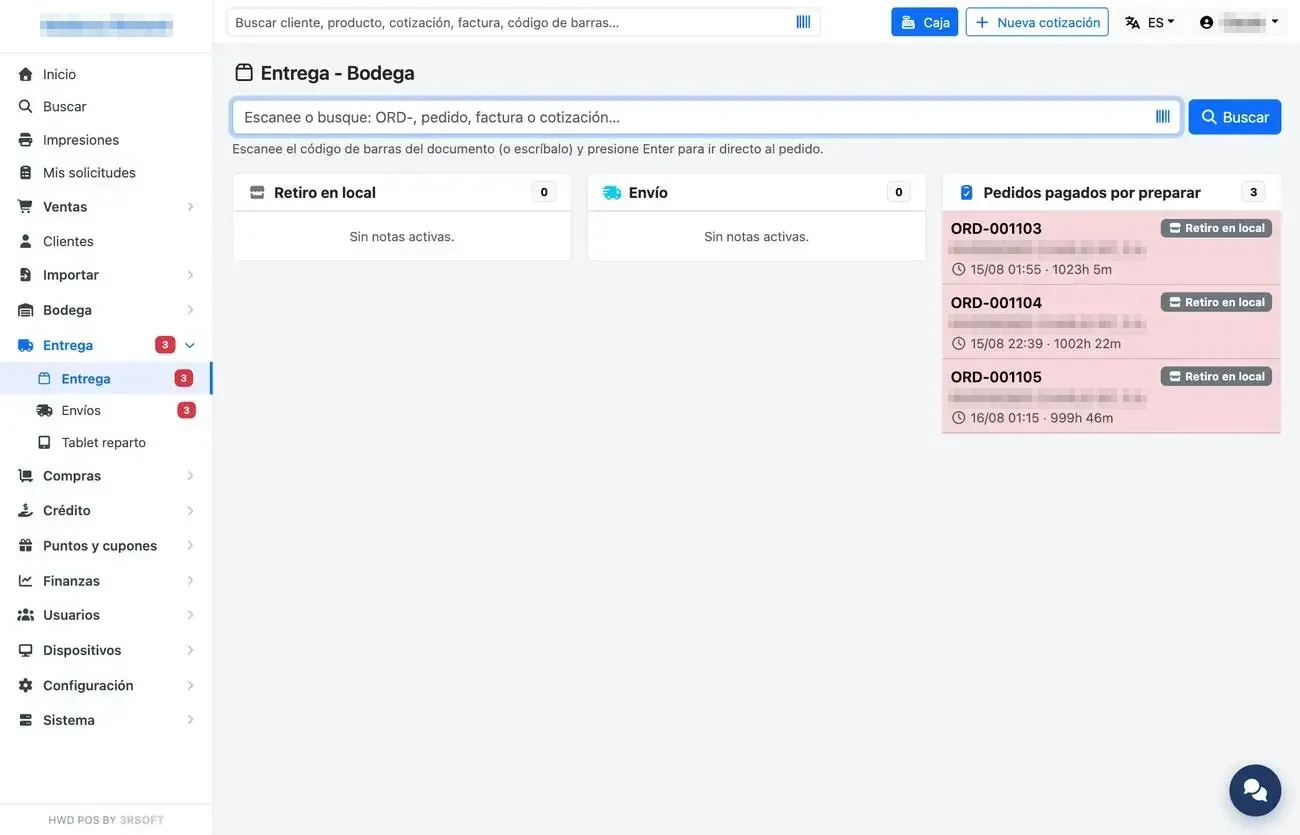
Entrega · Bodega board.
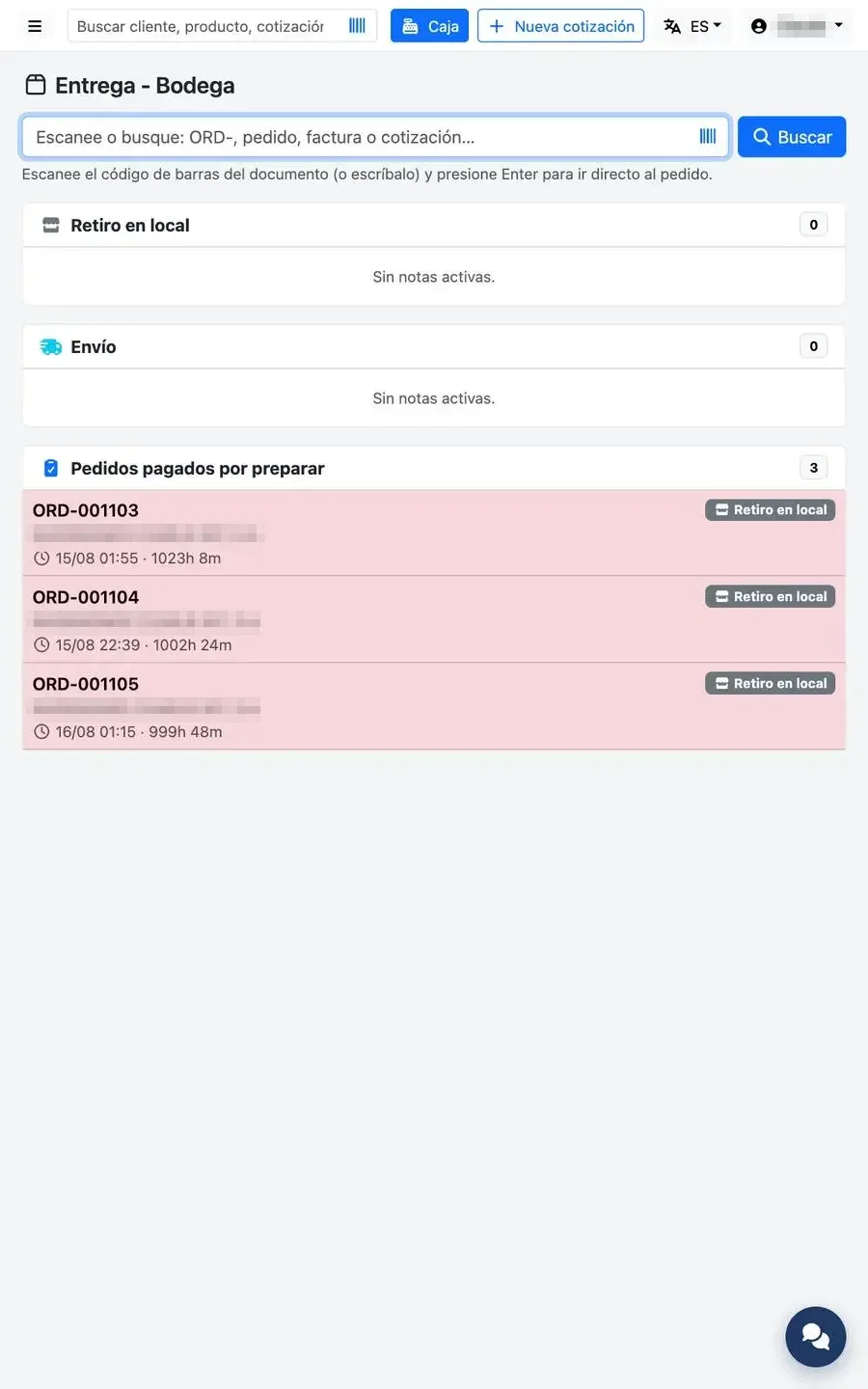
The same board on the tablet.
E.2 Preparing and delivering an order
- Scan the document or press the order.
- Press «Generar nota» (Generate note) if it does not have one yet.
- Enter what was prepared for each line and press «Guardar preparación» (Save preparation).
- In-store pickup: «Entregar al cliente» (Hand over to customer), the customer signs in the box and «Confirmar entrega» (Confirm delivery).
- Shipping: «Despachar» (Dispatch); the order moves to Envíos (Shipments).
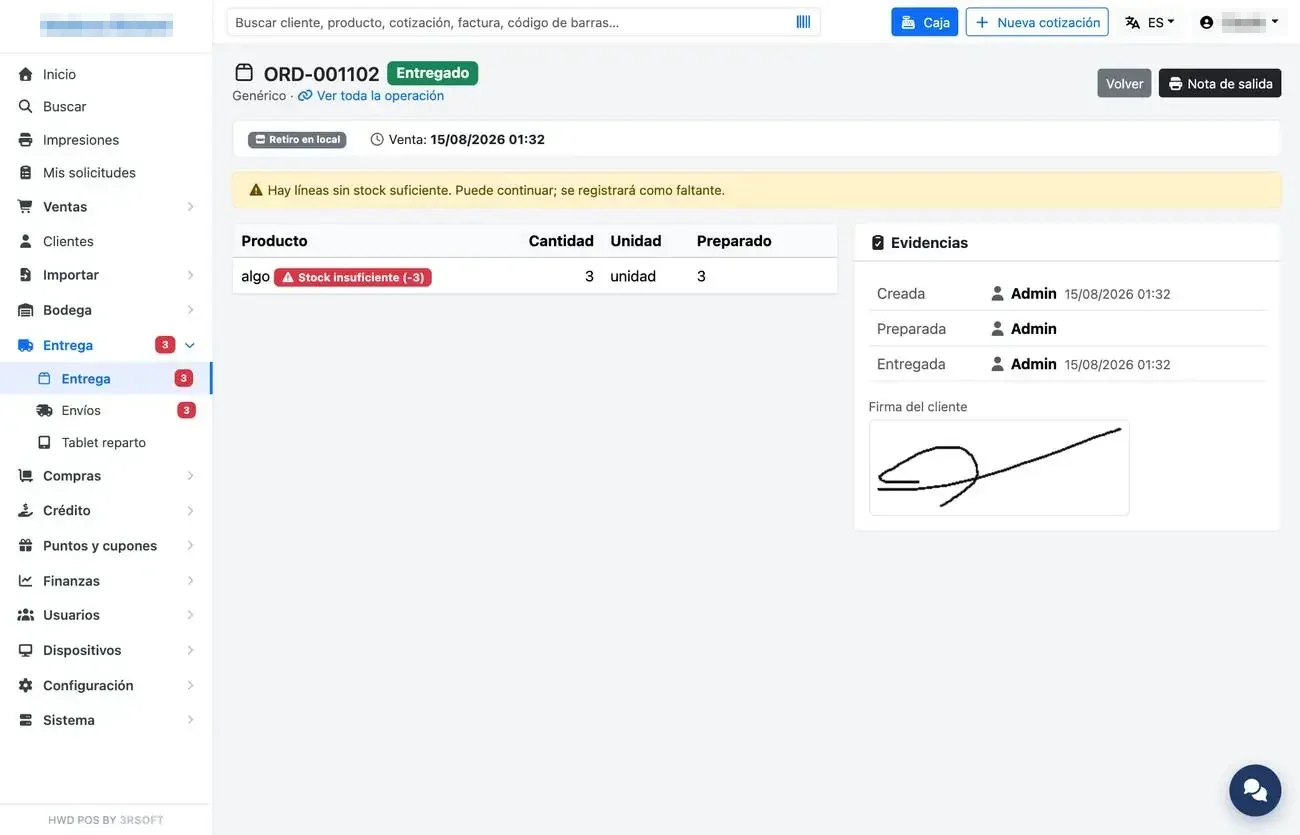
Delivery note: lines on the left, evidence on the right.
The Evidencias (Evidence) card says who created, prepared, dispatched and delivered, and when, and shows the signature; tapping the thumbnail opens it full size without leaving the screen.
E.3 Closing overdue deliveries in bulk
When the counter hands over the goods but the notes stay open, the board's «Cerrar entregas vencidas» (Close overdue deliveries) button closes them all with ONE single signature. It only offers what is already amber or red, and requires its own permission that the administrator grants manually.
- Press «Cerrar entregas vencidas».
- Choose the Retiro (Pickup) or Envío (Shipping) tab and tick the deliveries (an order without a note is marked as such).
- Sign in the box and press «Cerrar las marcadas» (Close the ticked ones).
- Read the notice: if any could not be closed, it says which one and why; the rest are closed.