Connecting devices
The local and public server addresses, activation codes, automatic registration and the license device limit.
Every computer, phone or tablet that uses an HWD POS app is registered on the server as a terminal. The server gives it its name, counts it in the license and shows it in «Dispositivos» → «Terminales» (Devices → Terminals). This page explains how a device finds the server and how it is registered.
The two server addresses
All three apps ask for two addresses:
| Field | What to put | Example |
|---|---|---|
| «Servidor local (LAN)» (Local server) | The server's address on the store's network. Use the server's fixed IP. | http://192.168.1.20 |
| «Servidor público (opcional)» (Public server, optional) | An address that reaches the server from outside the store, if you have one (a domain or a public IP). | https://pos.mystore.com |
If you leave out http://, the app adds it. Include the port only if the server doesn't use the standard one (for example http://192.168.1.20:8010).
Each time they connect, the apps try the local address first. If it doesn't answer within a few seconds, they use the public one. The desktop app and HWD POS mobile then show «Remoto» (Remote) next to the name.
The administrator writes these addresses once in «Configuración» → «Configuración», in the «Conexión de dispositivos» (Device connection) box: «URL local (LAN)» and «URL pública (IP o dominio)». The activation codes carry them, so a device activated with a QR doesn't need anyone to type them.
Activation codes (phones and tablets)
A new device can't register on its own: it needs a single-use activation code. The mobile apps read it as a QR with the camera.
- On a computer, sign in as an administrator and open «Dispositivos» → «Terminales».
- In «Generar código de activación» (Generate activation code), optionally fill in «Nombre del dispositivo» (Device name). If you leave it blank, the device asks for a name when it is activated.
- Choose «Expira en» (Expires in): 60 minutes, 24 hours or «Sin expiración» (No expiry).
- Press «Generar código de activación». The QR and the code
ENR-XXXXXXXX-XXXXXXXXappear. - On the phone or tablet, press «Escanee para activar el dispositivo» (Scan to activate the device) and point the camera at the QR. If the camera can't be used, type the code in «Código de activación» instead.
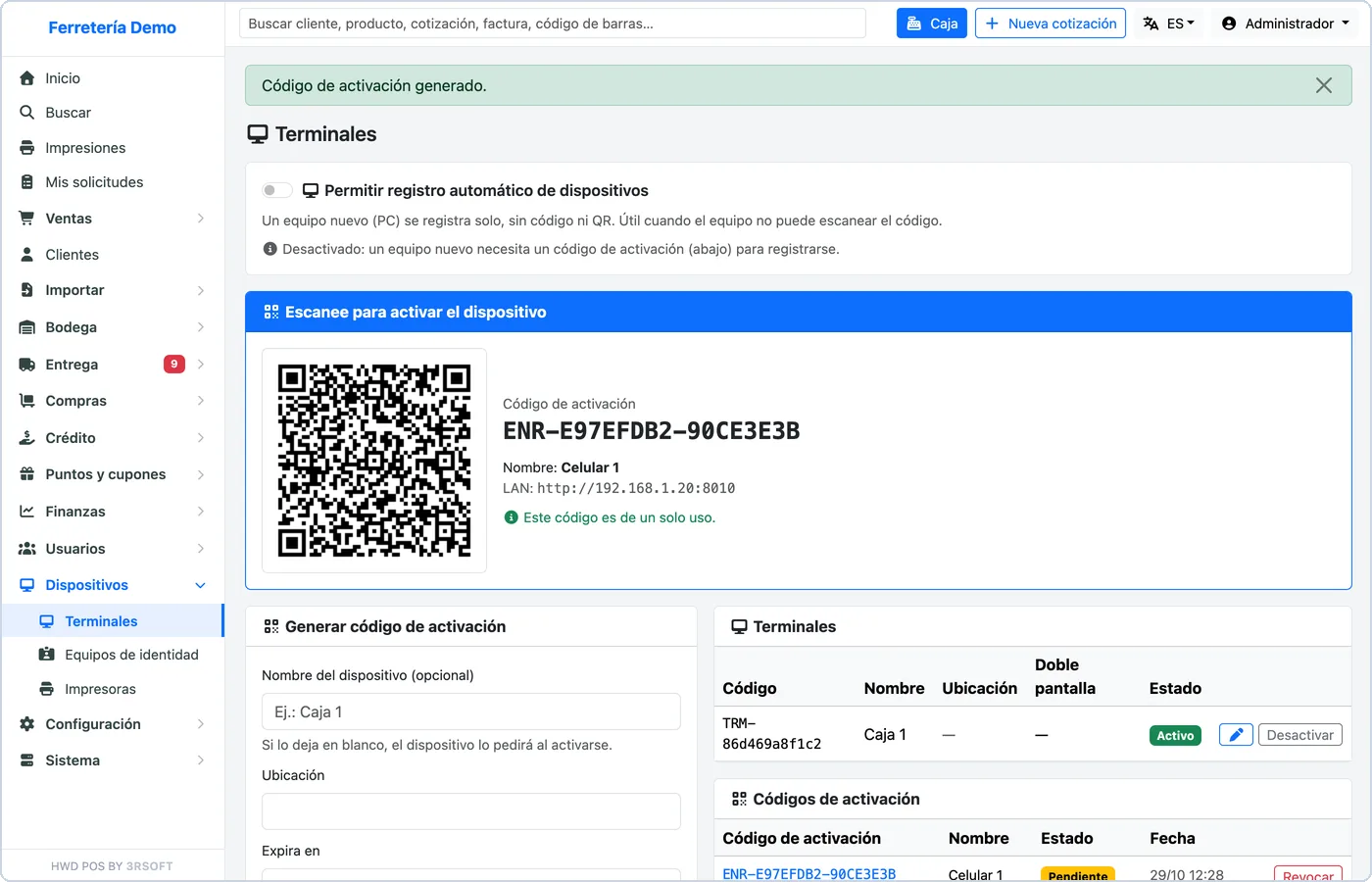
Terminals: the activation code with its QR, the switch for automatic registration and the list of terminals.
The code works only once. The list «Códigos de activación» (Activation codes) shows each code as «Pendiente» (Pending), «Usado» (Used) or «Revocado» (Revoked); «Revocar» (Revoke) cancels a code that hasn't been used.
On an iPhone or iPad, deleting the app and activating it again keeps the same device: it doesn't take a new place in the license. On Android, uninstalling the app erases its identity, so the reinstalled app counts as a new device.
Automatic registration (computers)
A computer can't scan a QR, so the desktop app registers itself with the button «Registrar terminal» (Register terminal). For that to work, the administrator turns on «Permitir registro automático de dispositivos» (Allow devices to register automatically) at the top of «Terminales».
- On: new devices register themselves, up to the license device limit. Devices already registered only check their access.
- Off (the default): a new device needs an activation code. The desktop app then says «No se pudo registrar: Este dispositivo debe activarse con un código de activación.»
You can turn it on while you install the store's computers and turn it off when you finish.
Terminal names, deactivation and the license limit
- The server decides the name. If an administrator renames a terminal in «Terminales», the app shows the new name the next time it connects; in the desktop app the name field says «fijado por el servidor» (set by the server).
- «Desactivar» (Disable) takes a terminal out of the sign-in screen without deleting it: nobody can sign in with it until it is enabled again.
- Each registered device takes one place in the license. When there are no places left, registration fails with «Se alcanzó el límite de dispositivos.» (The device limit was reached). Disabling a terminal doesn't free its place: revoke the device that is no longer used in «Sistema» → «Activación» (System → Activation), or ask 3R Soft to extend the license.
- If the server is not activated, the desktop app doesn't open the POS («El sistema no está activado en el servidor. Solicite la activación para poder usar el POS.»), HWD POS mobile opens the POS on its locked screen, and HWD POS Delivery warns but keeps delivering.